
Quick add
Updated November 9, 2026
Quick add makes many rules at once from the choices of a Drop Down, Radio Buttons, Checkboxes or Multi Select field. Click Quick add under the rules, then pick the field in Make rules from the choices of.
If the form has no such field, Quick add says so.
Add a rule for every choice
Click Add a rule for every choice. You get one rule per choice, [field] is [choice], each with an empty value for you to fill in. Choices that already have a rule like that are skipped, and so is an “Other” choice. A message says how many rules were added, and how many already existed.
Paste a list
Click Paste a list, paste one rule per line, then click Add these rules. Each line is the choice, a | (or a tab), then the value to fill in:
Week 1 | 6/7/2027
Week 2 | 6/14/2027
Week 3 | 6/21/2027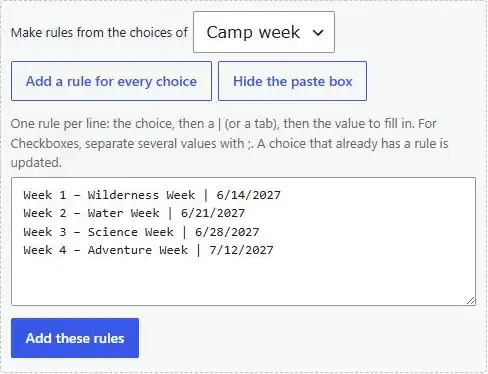
- Two columns copied from a spreadsheet paste with a tab between them, so they work as they are.
- The choice can be its label or its value; upper and lower case don’t matter.
- When you are filling a Checkboxes field, separate several values with ;, for example Day camp | Lunch; T-shirt.
- When you are filling a Drop Down or Radio Buttons field, the value should be one of its choices (label or value).
- If a choice already has a rule ([field] is [choice], with just that one condition), its value is updated instead of a second rule being added.
A message then says how many rules were added and updated. It also tells you how many lines named a choice that isn’t on the field, or gave a value that isn’t one of the target field’s choices, so you can fix those rules.
The empty starter rule that appears when you tick Fill this field in automatically is removed when Quick add makes rules, so you don’t end up with a blank rule at the top.
Thanks for letting us know.