
The KodaFill tab
Updated November 9, 2026
Everything in KodaFill is set on the field that should be filled in. In the form editor, click the field, then open the KodaFill tab in its settings.
Fields that have the tab
Single Line Text, Paragraph Text, Number, Hidden, Email, Phone, Website, Drop Down, Radio Buttons, Checkboxes and Date. Other field types don’t show the tab, because KodaFill can’t fill them.
Settings on the tab
| Setting | What it does |
|---|---|
| Fill this field in automatically | Turns KodaFill on for this field. Untick it to stop filling; your rules are kept, ready for when you tick it again. |
| How it fills | Always fill it: the rules decide the value every time, replacing anything the visitor types. Fill it only if it’s empty: the rules fill the field until the visitor types or chooses something, then leave their entry alone. See Always fill, or only if empty. |
| Visitors can’t change this field | Shown under Always fill it (not for Hidden fields). Visitors see the field greyed out and can’t type in it, click it or tab to it. It is off until you tick it. See Letting visitors see but not change the value. |
| Rules | The if-then rules, top to bottom. The first rule whose conditions are true decides the value. See Conditions and Rule order, default and loops. |
| + Add rule | Adds an empty rule at the bottom. |
| Quick add | Makes a rule for every choice of a Drop Down, Radio Buttons, Checkboxes or Multi Select field, or makes many rules from a pasted list. See Quick add. |
| If no rule matches | The value to use when no rule matches. Leave it empty to clear the field when nothing matches. |
Working with rules
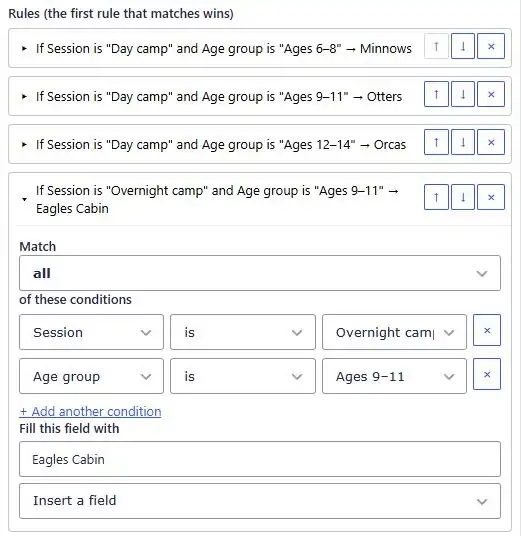
Each rule is a card. Its title is a one-line summary, for example If Camp week is “Week 2” → 6/14/2027.
| To… | Do this |
|---|---|
| Open or close a rule | Click its summary. When a field has more than two rules, they start closed so the list stays short. |
| Change the order | Use the ↑ and ↓ buttons on the rule. |
| Delete a rule | Click × on the rule. |
| Add a condition | Open the rule and click + Add another condition. |
| Remove a condition | Click × at the end of the condition. (A rule always keeps at least one.) |
| Set the value | Use Fill this field with at the bottom of the rule. |
What Fill this field with looks like depends on the field you’re filling: a drop-down of choices for a Drop Down or Radio Buttons field, tick boxes for Checkboxes, and a text box for everything else. See What a rule can fill.
Saving
Changes on the KodaFill tab are kept on the field as you make them. Click Save Form to save them, as with any other field setting. The rules are saved inside the form, so they are copied when you duplicate the form and included when you export it.
Messages on the tab
| Message | Meaning |
|---|---|
| Fills in as 06/14/2027 | Shown under a date value: the date as this field will show it. |
| Not a date KodaFill can read… | The date value can’t be read. Use M/D/YYYY, YYYY-MM-DD or a {today} value. See Dates and {today}. |
| (not a choice) | A saved value that isn’t one of the field’s choices any more, for example after you renamed a choice. Pick a current choice. |
| Missing field 7 | A condition looks at a field that has been deleted. That condition is never true. Pick another field or remove the condition. |
| These fields fill each other in a loop… | Two or more fields depend on each other. See Rule order, default and loops. |
| KodaFill needs an active license | KodaFill is switched off on this site. See Install and activate. |
Thanks for letting us know.