
Preview
Updated November 9, 2026
Preview shows which files an existing entry would get, using the settings on screen. Nothing is sent.
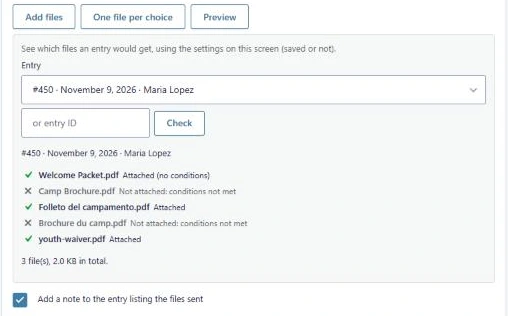
- Click Preview.
- Pick one of the form’s 25 latest entries from the list, or type an entry ID in the or entry ID box.
- Click Check.
What the result shows
Each file in the list is shown with the name recipients would see, and one of these:
| Result | Meaning |
|---|---|
| Attached (no conditions) | The file has no conditions, so it always goes. |
| Attached | The file’s conditions match this entry. |
| Not attached: conditions not met | The file’s conditions don’t match this entry. |
| Not attached: file missing | The file is no longer in the Media Library. |
| Not attached: different file under this ID | The file was replaced, or the form came from another site. See Missing and changed files. |
Under the list you see how many files the entry gets and their total size, and the 10 MB warning when the total is over that.
Good to know
- Preview uses what’s on screen, saved or not, so you can try changes before clicking Update Notification.
- Rows without a file aren’t included.
- The entry ID box accepts any entry of this form, including ones not in the list.
- Preview doesn’t check the notification’s own Event or conditional logic. It only answers: if this notification is sent for this entry, which KodaClip files go with it?
Was this page helpful?
Thanks for letting us know.