
Hiding items with rules
Updated November 9, 2026
A hide rule leaves an item out of the PDF when an answer in the entry matches. For example: hide Key location when Is anyone home during the visit? is Yes.
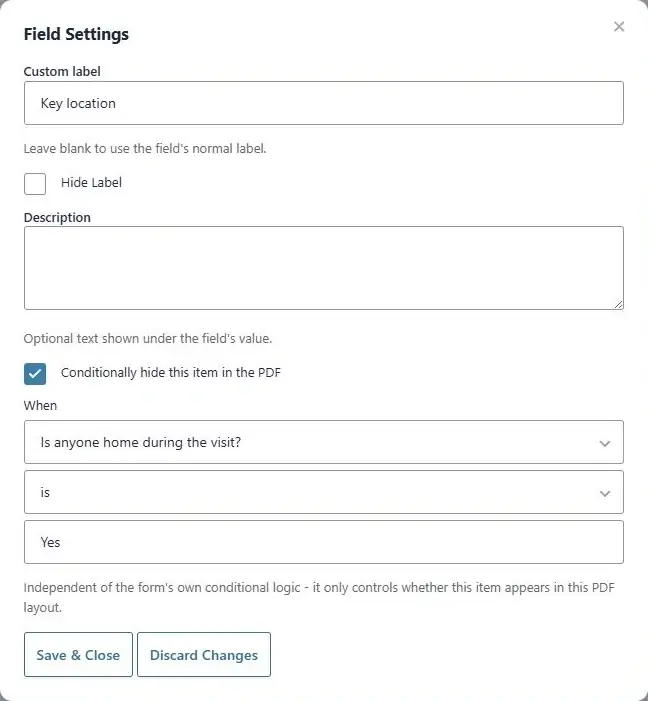
Add a rule
- Click the item’s pencil icon.
- Tick Conditionally hide this item in the PDF.
- Under When, choose the field to check, a comparison, and type the value.
- Click Save & Close.
A crossed-out eye icon now shows on the item. Hover over it to read the rule. To remove the rule, untick the box and save.
Fields, text blocks and HTML blocks can each have one rule. Page breaks can’t. In a stack, give each item its own rule.
Comparisons
| Comparison | Hides the item when the answer… |
|---|---|
| is | is exactly the value |
| is not | is anything other than the value, including empty |
| is greater than | is a number bigger than the value |
| is less than | is a number smaller than the value |
| contains | includes the value anywhere |
| does not contain | doesn’t include the value |
| starts with | begins with the value |
| ends with | finishes with the value |
How values are matched
- Matching is exact and case-sensitive: Yes doesn’t match yes or Yes .
- For choice fields (Drop Down, Radio Buttons, Checkboxes), use the choice’s value. If the field has show values turned on in Gravity Forms, that can differ from the label people see.
- is greater than and is less than only compare numbers. If the answer or your value isn’t a plain number (for example $1,000 or empty), the rule doesn’t match and the item shows.
- To hide an item when an answer is empty, use is with the value box left empty.
Fields with several parts
Name, Address, Checkboxes, Consent and similar fields store each part separately, so the When list shows each part, such as Name — First or Service address — City. Choose the part to check.
- Checkboxes: each choice is its own part. It holds the choice’s value when ticked and is empty when not. To hide something unless Pets is ticked, use Pets is with an empty value.
- Consent: the consent part holds 1 when the box is ticked.
Hide, not show
Rules describe when to hide. To show an item only for some entries, use the opposite comparison: to show Key location only when nobody is home, hide it when Is anyone home during the visit? is Yes.
Hide rules are separate from the form’s own conditional logic. They only decide what appears in this PDF. A field the form itself hid from the visitor is always left out (see When a field is left out).
Hiding a whole section, such as a heading plus three fields? Give each of them the same rule. Stacking them keeps them together in one column.
Thanks for letting us know.