
Text blocks
Updated November 9, 2026
A text block is your own text, placed anywhere in the layout: a heading, an introduction, terms and conditions, a thank-you note. It can include answers from the entry (see Inserting field values).
- Click + Add Text Block. The editor opens.
- Type and format your text.
- Click Save & Close, then drag the block’s row to where it belongs.
To change it later, click its pencil icon. In the builder, a text block shows a TEXT BLOCK badge and the start of its text.
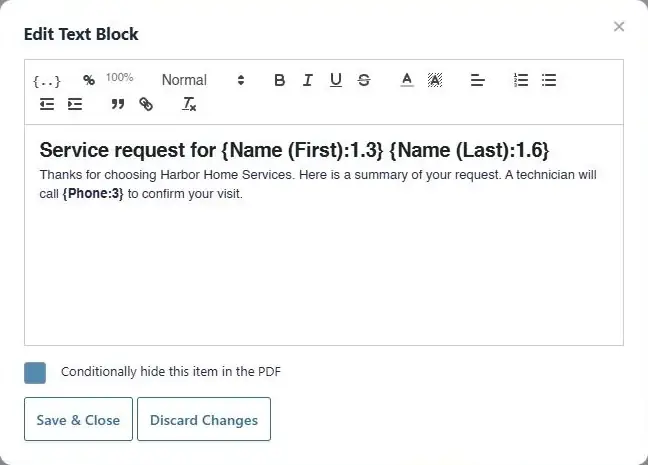
The toolbar
| Button | What it does |
|---|---|
| {..} | Inserts a field’s answer (see Inserting field values) |
| % and the size shown beside it | Resizes the selected text (see below) |
| Normal menu | Turns the line into Heading 1, Heading 2 or Heading 3, or back to Normal text |
| B I U | Bold, italic, underline, strikethrough |
| A with a color bar | Text color |
| Highlighter | Background (highlight) color behind the text |
| Alignment | Left, center, right or justified, for the whole paragraph |
| Numbered and bulleted list | Turns paragraphs into a list |
| Indent buttons | Move a paragraph or list item in or out (up to 8 steps) |
| Quote marks | Formats the paragraph as a quotation |
| Link | Turns the selected text into a link |
| T with a small x | Removes all formatting from the selected text |
New paragraph or new line
- Enter starts a new paragraph, with a gap above it.
- Shift+Enter starts a new line in the same paragraph, with no gap. Use it for addresses and short line-by-line text.
Font size
- Select the text you want to resize.
- Click %.
- Enter a percentage of its current size, for example 150 for one and a half times as big, or 80 for smaller. Click OK.
The number beside the button shows the size of the text at the cursor. If no text is selected, you’re asked to Select some text first, then click this button to resize it. The PDF template sets the base size; percentages scale from it.
Good to know
- Images can’t be added to a text block. Use an HTML block.
- Text blocks print whether or not the PDF template’s Show HTML Fields setting is on.
- A text block can have a hide rule, and can go in a stack or beside other items.
- If the editor can’t load, a plain text box appears with the message The rich text editor could not load. You can still type text, and HTML tags you type work in the PDF. See When the builder doesn’t work.
Was this page helpful?
Thanks for letting us know.