
The layout builder
Updated November 9, 2026
The builder is in each PDF’s settings: Forms → your form → Settings → PDF, click the PDF’s name, then scroll to Custom Field Layout in the Advanced section. Tick Use a custom layout for this PDF to show it.
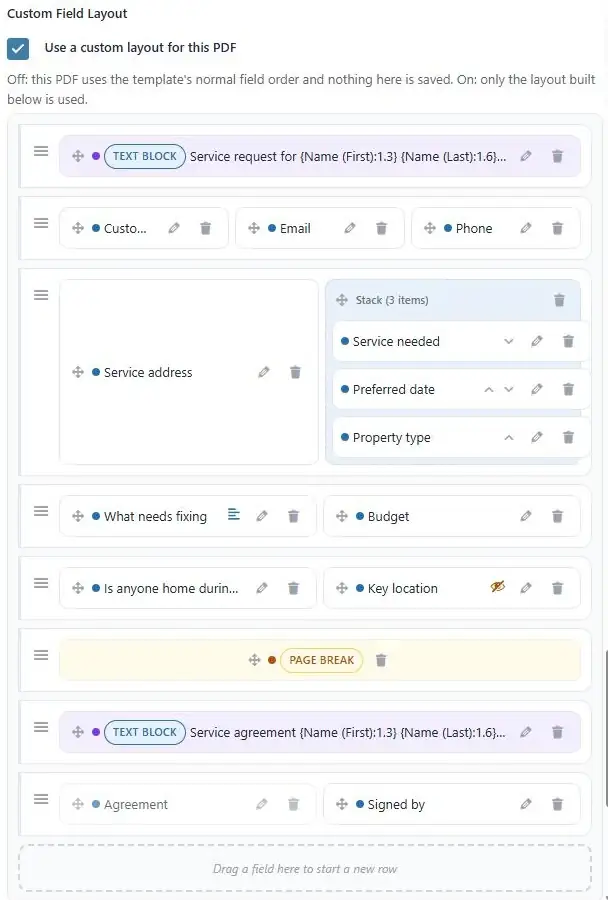
Rows and items
The layout is a list of rows, printed top to bottom. Each row holds one to four items, printed side by side. An item is a form field, a text block, an HTML block, a page break or a stack.
| On screen | What it does |
|---|---|
| ≡ handle at the far left of a row | Drag to move the whole row up or down |
| Four-way arrow on an item | Drag to move the item: within its row, into another row, into the dashed zone (new row), or onto another item to stack them |
| Pencil icon | Opens the item’s settings or editor. Page breaks have none. |
| Trash icon | Removes the item. A row with no items left disappears. |
| TEXT BLOCK, HTML BLOCK, PAGE BREAK badges | Mark items that aren’t form fields. Text and HTML blocks show the start of their content. |
| Greyed-out field | Its label is hidden in the PDF (see Labels and descriptions) |
| Small text icon on a field | The field has a description. Hover over it to read it. |
| Crossed-out eye icon | The item has a hide rule. Hover over it to read the rule. |
| Blue box with Stack (N items) | A stack: several items in one column (see Stacks) |
| Dashed box at the bottom | Drop an item here to put it on a new row of its own |
Buttons under the builder
| Button | What it adds |
|---|---|
| The Choose a field to add list and Add Field | The chosen form field, as a new row at the bottom (see Adding and removing fields) |
| + Add Text Block | A block of your own formatted text, as a new row at the bottom. Its editor opens straight away. |
| + Add HTML Block | A block of your own HTML, as a new row at the bottom. Its editor opens straight away. |
| + Add Page Break | A page break, as a new row at the bottom |
| Preview | A real PDF of the layout on screen, for the entry you choose (see Previewing a layout) |
Editing windows
The pencil icon opens a window. How you close it decides whether your edit is kept:
- Save & Close, the × in the corner, pressing Esc or clicking outside the window all keep your edit.
- Only Discard Changes throws it away.
Edits in the builder are only stored when you click Update PDF at the bottom of the page. There is no undo: to start over, leave the page without saving and open it again.
Was this page helpful?
Thanks for letting us know.