
Set up a Calendar
Updated November 9, 2026
The Calendar block shows entries on a calendar by a date field: events, bookings, deadlines, shifts. One calendar can show entries from several forms, each in its own colour.
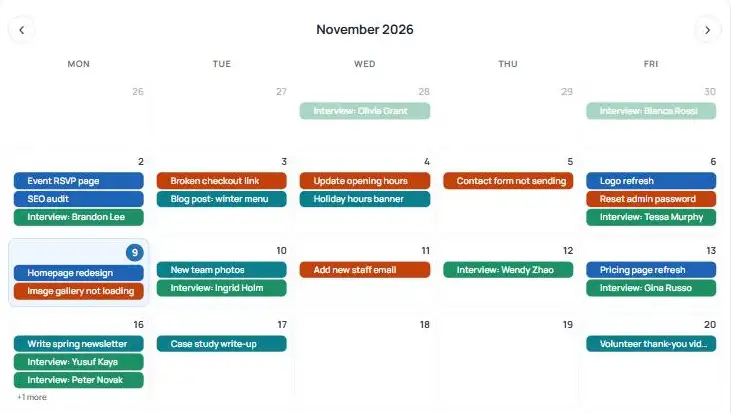
Add forms
- Add a Calendar block to your board.
- In the Source tab, pick a form in Add form and click Add.
- Choose its date fields (below). The other tabs unlock once a form has a start date field.
- Repeat for each form you want on the calendar.
Dates and times
| Setting | What it does |
|---|---|
| Date mode | Single date for one-day events, or Date range (start + end) for events over several days. Ranges show as one bar across the days. |
| Start date field | The Date field that places the entry. Date Created uses the day the entry was submitted. |
| End date field | For date ranges: the Date field for the last day. |
| Start time / End time | Optional Time fields. Times show on events and place them on the hour grids in Day and Week views. |
| Event color | The colour of this form’s events. |
| Repeats | Optional: make entries repeat. See Repeating events. |
Entries with an empty or unreadable start date aren’t shown.
Next steps
- Choose the view and layout: Views and display.
- Decide what each event shows and does when clicked: Event text and clicks.
- Let people add or move events: Adding and moving events.
Was this page helpful?
Thanks for letting us know.