
The board editor
Updated November 9, 2026
You build every board in the board editor. Open it with KodaDash → Add New Board, or click a board’s name in KodaDash → All Boards.
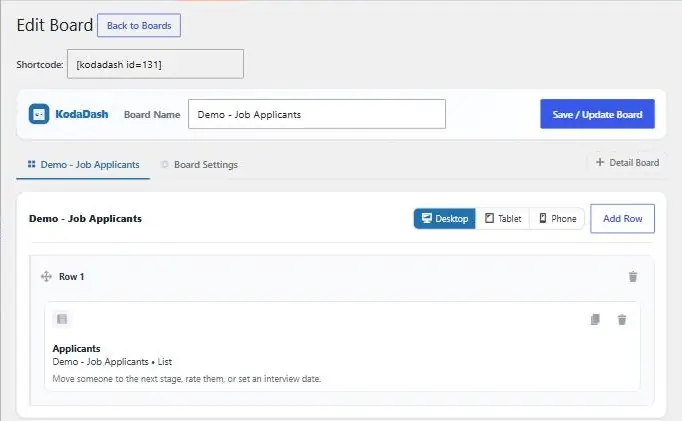
Parts of the editor
| Part | What it does |
|---|---|
| Board Name | The name you see in wp-admin. Visitors don’t see it. Names must be unique, so KodaDash adds a number if one is taken. |
| Save / Update Board | Saves the whole board: every tab, block and setting. |
| Shortcode | Shown after the first save. Paste it on a page to show the board. |
| Board tab | The main board, named after your board. This is what visitors see first. |
| Board Settings | Settings for the whole board. See Board Settings. |
| + Detail Board | Adds a Detail Board: a board for one entry. Each Detail Board gets its own tab. See Detail Boards. |
| Desktop / Tablet / Phone | Sets and previews block widths for each screen size. See Rows, widths and devices. |
| Add Row | Adds an empty row at the bottom of the board. |
| Add Block / Edit Block | The panel under the board. Add Block lists the blocks you can drag in; Edit Block shows the settings of the selected block. |
Working with blocks
| To… | Do this |
|---|---|
| Add a block | Drag it from Add Block into a row. |
| Select a block | Click it. Its settings open in Edit Block. Press Esc to deselect. |
| Move a block | Drag it by its handle, within a row or to another row. |
| Stack blocks | Drag a block onto the top or bottom edge of another block until Stack here appears. Stacked blocks sit one above the other and share the width of the top block. |
| Copy a block | Click the copy icon on the block. The copy is added at the end of the same row and selected. |
| Delete a block | Click the trash icon. The block goes straight away, and an Undo button appears for a few seconds. |
| Move a row | Drag it by the handle beside its name. |
| Delete a row | Click the trash icon on the row. A row with blocks in it can be brought back with Undo. |
Each block’s settings are split into tabs, such as Source, Block, Columns, Edit, Style, Filter and Visibility. Which tabs appear depends on the block. Every block has its own page in the Blocks section.
Saving
- Click Save / Update Board, or press Ctrl+S (Cmd+S on a Mac).
- An orange Unsaved changes dot beside the button means there is something to save.
- If you leave or close the page before saving, KodaDash keeps a copy of your unsaved changes in your browser and offers to restore them the next time you open the board.
- Each save keeps the version before it. Board Settings → General → Restore Last Good Save puts it back. See Managing boards.
Two people editing one board
While someone has a board open in the editor, other people can’t save it. If you try, you see This board is currently locked by another editor. The lock clears a few minutes after the other person closes the board.
You can close most windows in the editor with Esc.
Was this page helpful?
Thanks for letting us know.