
List
Updated November 9, 2026
The List block shows entries from one form as a table. It’s the most-used block: a list of applicants, orders, registrations or tickets, with sorting, search, paging, exports and editing.
To show entries from several forms in one table, use the Multi-Form List block instead.
Source tab
| Setting | What it does |
|---|---|
| Form | The form whose entries the list shows. |
| Page size | How many entries show on each page. |
| Show entry count below the table | Shows how many entries match, for example “42 entries”. |
| Mobile view | Collapsible: each row shows a few columns and opens to show the rest. Stack: each entry is shown as a stacked card. |
| Visible columns (mobile) | How many columns show on phones before a row is opened (Collapsible view). |
| Primary sort / direction | How entries are ordered: Created date, Entry ID or a field value, newest or oldest first. |
| Secondary sort / direction | Used when two entries have the same primary sort value. |
Block tab
| Setting | What it does |
|---|---|
| Title | Shown at the top of the block. Merge tags and formula tags work here. |
| Hide title | Hides the title on the page (on blocks that have this option). |
| Description / Description Position | Extra text shown Above or Below the block, or Hidden. |
| Width | How much of the row the block takes. See Rows, widths and devices. |
| Height | Stretch to the bottom (match the tallest block in the row) or Natural height. |
| List setting | What it does |
|---|---|
| No entries message | Shown when no entries match. Default: No entries match this request. |
| Show Search | Adds a search box. Search scope chooses whether it searches all fields or only the columns shown. |
| Show Export Buttons | Lets visitors download the entries the list shows as CSV or Excel, or open a Print page (Portrait or Landscape) that they can also save as a PDF. Anyone who can see the board can use these. |
Columns tab
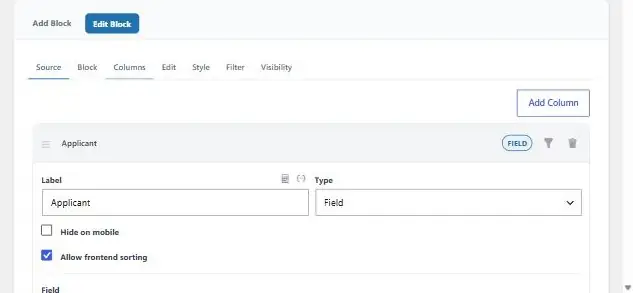
Click Add Column for each column, then drag columns by their handle to reorder them.
| Column type | Shows |
|---|---|
| Field | A form field, or an entry value such as Entry ID, Entry Date or Created By. Add-on data such as Quiz scores appears marked “(entry data)”. |
| Nested Metric | A number worked out from the entry’s Gravity Perks Nested Forms child entries, such as how many children it has or the sum of a child field. |
| HTML | Your own HTML template, with Gravity Forms merge tags for this entry. |
| Formula | A calculation from the entry’s own fields. See Data Formulas. |
| Edit Link | A link that opens the entry’s edit form. |
| Delete Link | A link that deletes the entry, after asking first. |
| Action Buttons | One-click buttons that change the entry. See Action Buttons. |
Column options
| Option | What it does |
|---|---|
| Label | The column heading. |
| Hide on mobile | Leaves the column out on phones. |
| Allow frontend sorting | Visitors can click the heading to sort by this column. |
| Date / time display | How date and time fields are written. |
| Make this column value an Edit link | Clicking the value opens the edit form. |
| Make this column value a Detail Board link | Clicking the value opens a Detail Board. Choose which one, and whether it opens in a new tab. |
| Allow inline editing | Visitors who can edit can change the value right in the table. See More board settings for inline editing options. |
| Show as / Link text | For Edit and Delete links: show text, an icon, or both, and the link text. |
| Rules (filter icon) | Show the column’s value only for entries that match conditions, for example show a Balance only when Status is Unpaid. |
Edit tab
Settings for the edit form when an entry is opened for editing from this list.
| Setting | What it does |
|---|---|
| Hide Fields on Edit | Fields left out of the edit form. Hiding a page break joins its page to the one before. |
| Read Only Fields on Edit | Fields shown on the edit form but not changeable. |
| Copy edit settings from | Copies these settings from another block on the board. |
When someone clicks an Edit link, the board is replaced by the entry’s form, filled in. When they submit it, they go back to the board. To show a message or send them elsewhere instead, open the form in Gravity Forms and go to Settings → KodaDash → Edit Confirmation. Who can edit is set in Entry permissions.
Deleting asks first, then moves the entry to the Gravity Forms trash and offers Undo. Nothing is deleted for good from a board.
Style tab
Colours, fonts, borders and spacing for this list’s card, header, rows, cells, buttons and pager. Empty fields use the board style. The Pager section also sets how many page buttons show, previous and next arrows, “Page X of Y”, and where the pager sits.
Filter tab
- Conditions that limit which entries this list shows, on top of the board filter. See Filter conditions.
- Visitor filter choices (this block): filters visitors can pick on this list only.
Visibility tab
Show the block only when conditions match, for example only to logged-in visitors with the Manager role. When they don’t match, the block isn’t shown at all.
Thanks for letting us know.