
Install and activate
Updated November 9, 2026
Install the plugin
- Log in to My Account on kodaloo.com, open the Downloads tab and download the KodaDash zip file.
- In your WordPress admin, go to Plugins → Add New Plugin and click Upload Plugin.
- Choose the zip file, click Install Now, then Activate.
A KodaDash menu appears in the admin sidebar, right below Gravity Forms. A Kodaloo menu appears lower down: that is where license keys go.
Activate your license
- Copy your license key from your purchase receipt email, or from the Licenses tab in My Account.
- In WordPress, go to Kodaloo → Licenses.
- Paste the key into the License key box on the KodaDash card and click Activate.
The card turns Active and shows when updates and support run until, plus how many of your license’s sites are in use.
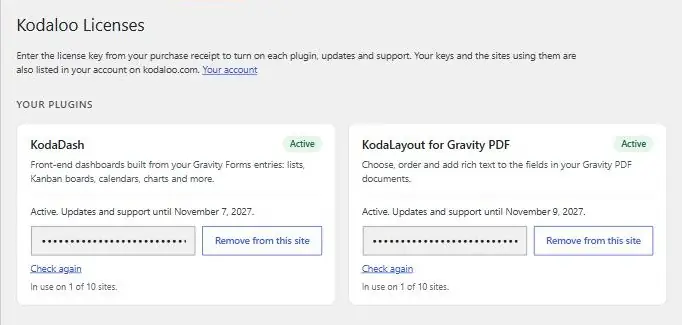
Only administrators can see Kodaloo → Licenses. Other people who manage boards can see the license status under KodaDash → Settings → License.
Before a license is active
Until a key is activated on the site, KodaDash is locked:
- Boards on your pages show nothing to visitors. People who manage boards see a short note explaining why, with a link to Licenses for administrators.
- KodaDash → All Boards and the board editor show “KodaDash needs an active license” instead.
- Editing, deleting and exporting entries from boards doesn’t work.
- KodaDash → Settings stays open.
Your boards are not lost. They all come back the moment a license is activated.
If activation fails
The Licenses page tells you what went wrong. Here is what each message means.
| Message | What to do |
|---|---|
| That key wasn’t found. | Copy the key again from My Account. Make sure no spaces or characters are missing. |
| That key is for a different product, not KodaDash. | Each Kodaloo plugin has its own key. Use the KodaDash key. |
| This license is already in use on all N sites it allows. | Remove the license from a site you no longer use (see Licenses and sites), or upgrade to a plan with more sites. |
| This license expired on date. | Renew it first. An expired key can’t be activated on a new site. |
| This license has been turned off, so it can’t be activated. | The license was refunded or turned off. Contact support if you think this is a mistake. |
| Couldn’t reach kodaloo.com. | Your server couldn’t connect to kodaloo.com. Try again in a few minutes. If it keeps happening, ask your host whether outgoing connections are blocked. |
Removing KodaDash
- Deactivating the plugin keeps all your boards and settings. While it is deactivated, pages show the board shortcode as plain text, so take the shortcodes off your pages if KodaDash will be off for a while.
- Deleting the plugin also keeps your boards, unless you turned on Delete all KodaDash data when the plugin is deleted under KodaDash → Settings. That option removes every board and Detail Board, Kanban card positions and notes, and KodaDash’s settings.
Your Gravity Forms forms and entries are never deleted with KodaDash, whatever the setting.
Before deleting KodaDash for good, click Remove from this site under Kodaloo → Licenses so the site no longer counts toward your license.
Thanks for letting us know.