
Working in the form editor
Updated November 9, 2026
In the form editor, KodaSteps shows where each step starts and ends, so long forms stay easy to follow.
Step bars
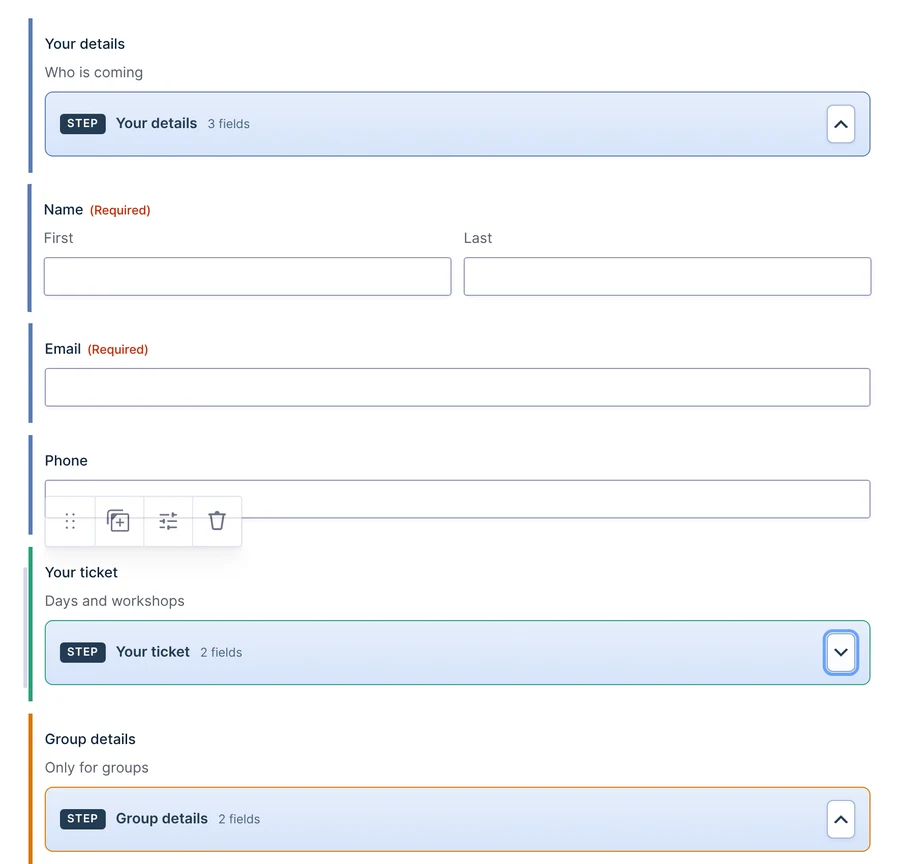
Each Step field shows as a light blue bar labelled STEP, with the step’s name and how many fields it holds, for example 2 fields. The step’s own label and description show above the bar, as for any field. A review step also shows a Review step badge. Click the bar to open the Step field’s settings, and drag it like any field to move where the step starts.
Colour bands
Every field in a step gets a coloured line down its left side, in the same colour as its Step field. Each step has its own colour (six colours, then they repeat), so you can see at a glance which step a field is in. Fields above the first Step field have no band, because they show on every step.
Bands and counts update as you add, delete or drag fields.
Collapsing a step
Click the arrow button at the right of a step bar to hide that step’s fields in the editor, and click it again to show them. Use this to fold away the steps you aren’t working on in a long form. It only changes the editor view, never the form, and each form remembers which steps you collapsed in this browser.
Warnings
If the form also contains Gravity Forms Page fields, the editor shows a warning that KodaSteps is off for this form, because the two can’t be combined (see How KodaSteps works).
Thanks for letting us know.