
The Step field
Updated November 9, 2026
Add a Step field from Advanced Fields → Step in the form editor and drag it to where the step should start. Click it to see its settings.
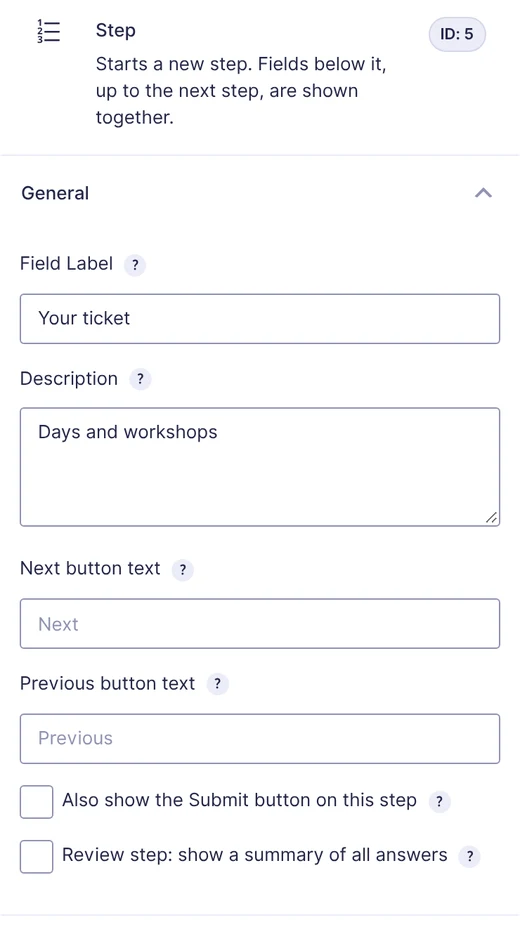
General
| Setting | What it does |
|---|---|
| Field Label | The step’s name in the step bar, the phone layouts and the review step. If you leave it empty, the step is called Step 1, Step 2 and so on. |
| Description | A short line shown under the step’s name in the step bar, for example Who is coming. Leave it empty for name only. |
| Next button text | The Next button’s text while this step is open, for example Choose your ticket. Empty uses Next. On the last step, this text replaces the Submit button’s text instead. |
| Previous button text | The Previous button’s text while this step is open. Empty uses Previous. |
| Also show the Submit button on this step | Shows Submit next to Next on this step, so visitors can finish early. Required fields on later steps are still checked when they submit, so use this when later steps only hold optional or conditional fields. |
| Review step | Turns this step into a summary of all earlier answers. See The review step. |
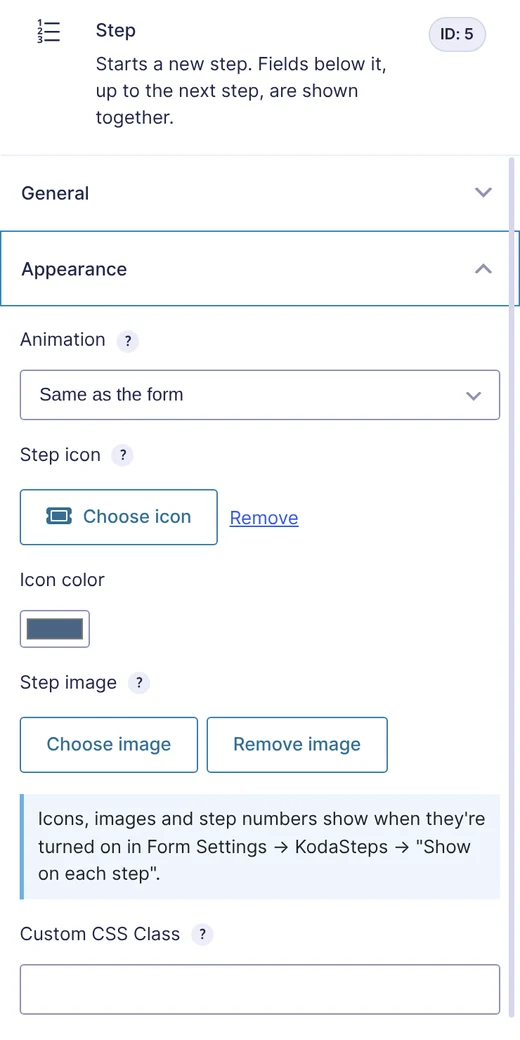
Appearance
| Setting | What it does |
|---|---|
| Animation | How this step appears: Same as the form (the default, set in Layout), None, Fade or Slide. |
| Step icon | Click Choose icon to pick from the Font Awesome 6 Free icons. Search by name and filter by Solid, Regular or Brands. Click Remove to clear it. |
| Icon color | The icon’s colour on this step. |
| Step image | Click Choose image to pick an image from the Media Library. |
| Custom CSS Class | Added to the Step field itself, which is hidden on the front end. To style the step’s button, use the CSS classes in Colours and presets instead. |
Icons, images and step numbers only show when they are switched on for the form: Form Settings → KodaSteps → Show on each step. A form shows one of them, not a mix.
Conditional logic
Step fields support Gravity Forms conditional logic. Hiding a step hides its button and all its fields, and Gravity Forms treats those fields as hidden: they aren’t required, saved or priced. See Showing and hiding steps.
Was this page helpful?
Thanks for letting us know.