
The KodaSteps settings
Updated November 9, 2026
Each form has its own KodaSteps settings. Open the form, click Settings, then KodaSteps in the settings menu. Change what you need and click Save Settings. Only users who can edit forms see this tab.
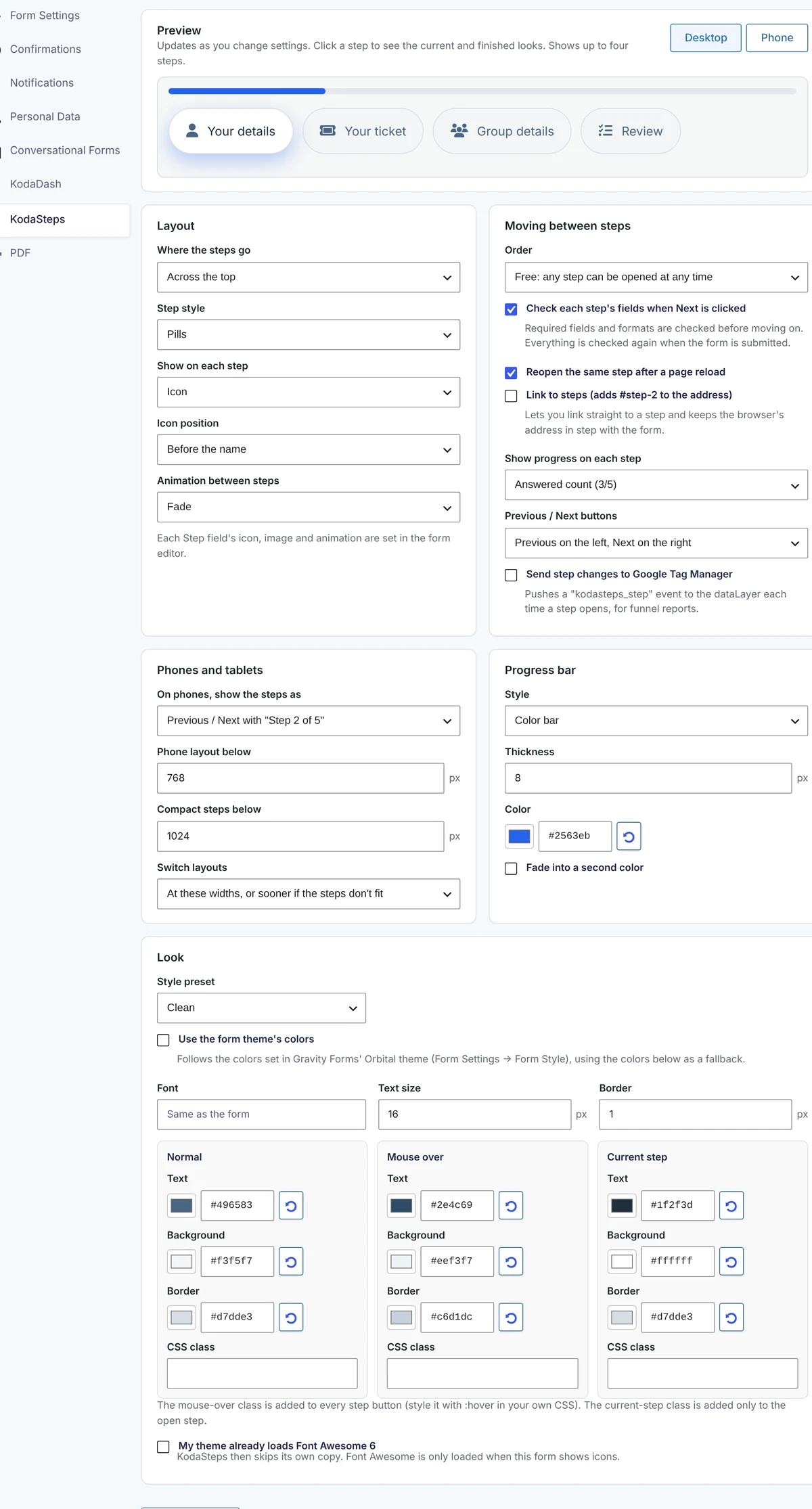
Preview
The preview shows the form’s first four steps (or four sample steps if the form has none yet) and updates as you change settings. Click a step to see the current-step and finished looks. Switch between Desktop and Phone to see both layouts. The preview ignores conditional logic, so every step shows.
The settings cards
| Card | What it controls | Details |
|---|---|---|
| Layout | Where the steps go, the step style, numbers/icons/images on each step, and the animation | Layout and step styles |
| Moving between steps | Free or in-order steps, the check on Next, remembering the step, step links, progress on each step, button position, Save and Continue, Google Tag Manager | Moving between steps |
| Phones and tablets | The phone layout and the widths where layouts switch | Phones and tablets |
| Progress bar | The bar above the steps: style, thickness, colours and icon | Progress bar |
| Look | Style presets, theme colours, font, text size, border, colours for each state, CSS classes, Font Awesome | Colours and presets |
If the form has no Step fields yet, the tab says so: This form has no steps yet. You can still choose settings; they apply once you add Step fields. If KodaSteps has no active license, the tab shows a license message instead of the settings.
Thanks for letting us know.