
Choice library and CSV files
Updated November 10, 2026
Reuse a list of choices in other forms, or build one in a spreadsheet. All four buttons are under Choice library at the bottom of the field’s KodaChoices section.
Save a list to the library
- Set up the field’s choices, with their pictures, colors, icons and extras.
- Click Save to library, enter a name for the list and click Save.
The list keeps each choice’s label, value, price and every KodaChoices setting (picture, hover picture, swatch colors, pattern, icon, sub-label, description, badge, unavailable, score, limit, group heading and rules).
Use a saved list
- Click the field and open its KodaChoices section.
- Click Use a saved list, pick the list and click Replace this field’s choices.
- Confirm, then click Save Form.
The field’s current choices are replaced. The list is copied into the field, so later changes to the list don’t change fields that already used it, and the other way round.
Choice rules point at fields by their ID. If you use a list with rules in another form, check each rule’s field in Label extras.
Manage saved lists
Lists are site-wide. Rename, delete or export them under Form Settings → KodaChoices → Choice library.
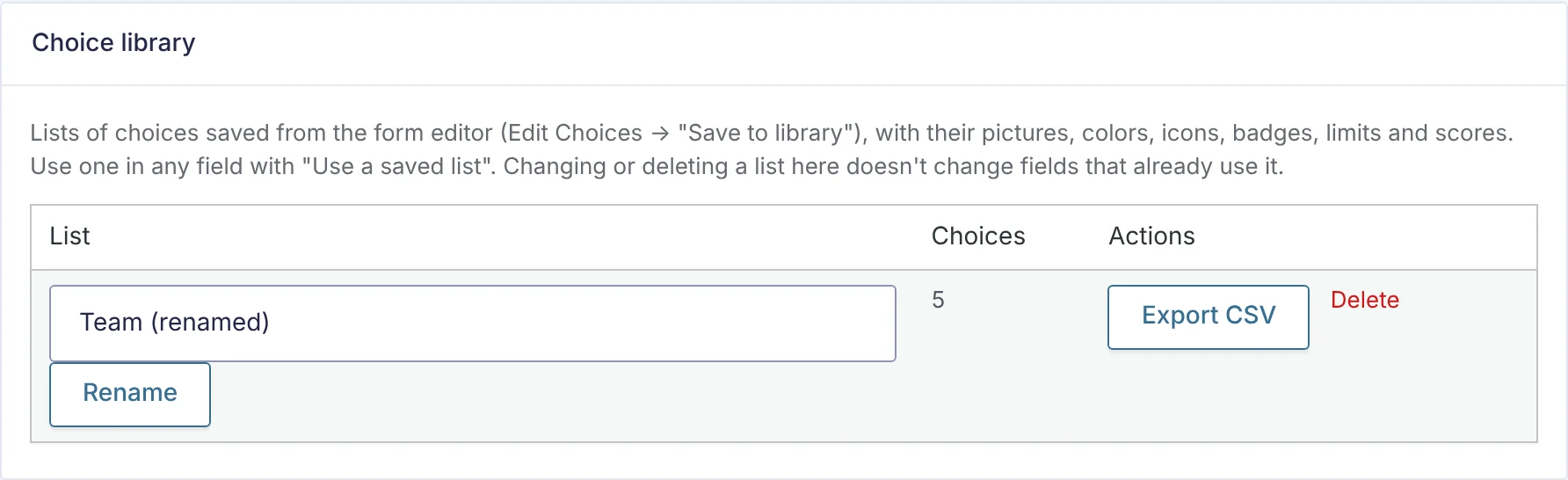
- Rename: type the new name and click Rename.
- Export CSV: downloads the list as a CSV file.
- Delete: removes the list. Fields that used it keep their choices.
Import choices from a CSV file
- Click Import CSV in the field’s KodaChoices section and choose a
.csvfile. - Confirm that the field’s choices should be replaced, then click Save Form.
The first row can be a header naming the columns, in any order. Without one, the columns are read in this order:
| Column | What it holds | Also accepted as a header |
|---|---|---|
label | The choice’s label (required) | text, choice, name |
value | The value saved in entries. Empty uses the label. | |
price | Price, for product fields | |
score | A number for kc_score | points |
image | A picture: its full URL, or its Media Library ID | picture, photo |
sub | Sub-label | sublabel, sub-label, subtitle |
description | Description shown on hover | desc |
badge | Badge text | |
limit | Limit for this choice (a whole number) | stock |
group | Group heading before this choice | heading |
color | Swatch color, as a hex code such as #1e3a8a | colour, swatch |
color2 | Second color | colour2, second color |
icon | A Font Awesome icon name, such as leaf or fa-regular fa-star |
Commas or semicolons both work as separators, and cells can be in quotes. Rows with no label are skipped.
Click Export CSV on a field that’s already set up to get a file in exactly the right format, then edit it in your spreadsheet program.
Export a field’s choices
Export CSV downloads the field’s choices with the columns above. Badge looks, hover pictures, patterns, icon colors and rules aren’t in CSV files; use the choice library to keep those.
Thanks for letting us know.