
Showing a choice only when…
Updated November 10, 2026
Gravity Forms’ conditional logic shows or hides whole fields. KodaChoices adds the same kind of rules to single choices, for example showing Kids’ craft table only when “Bringing children?” is Yes.
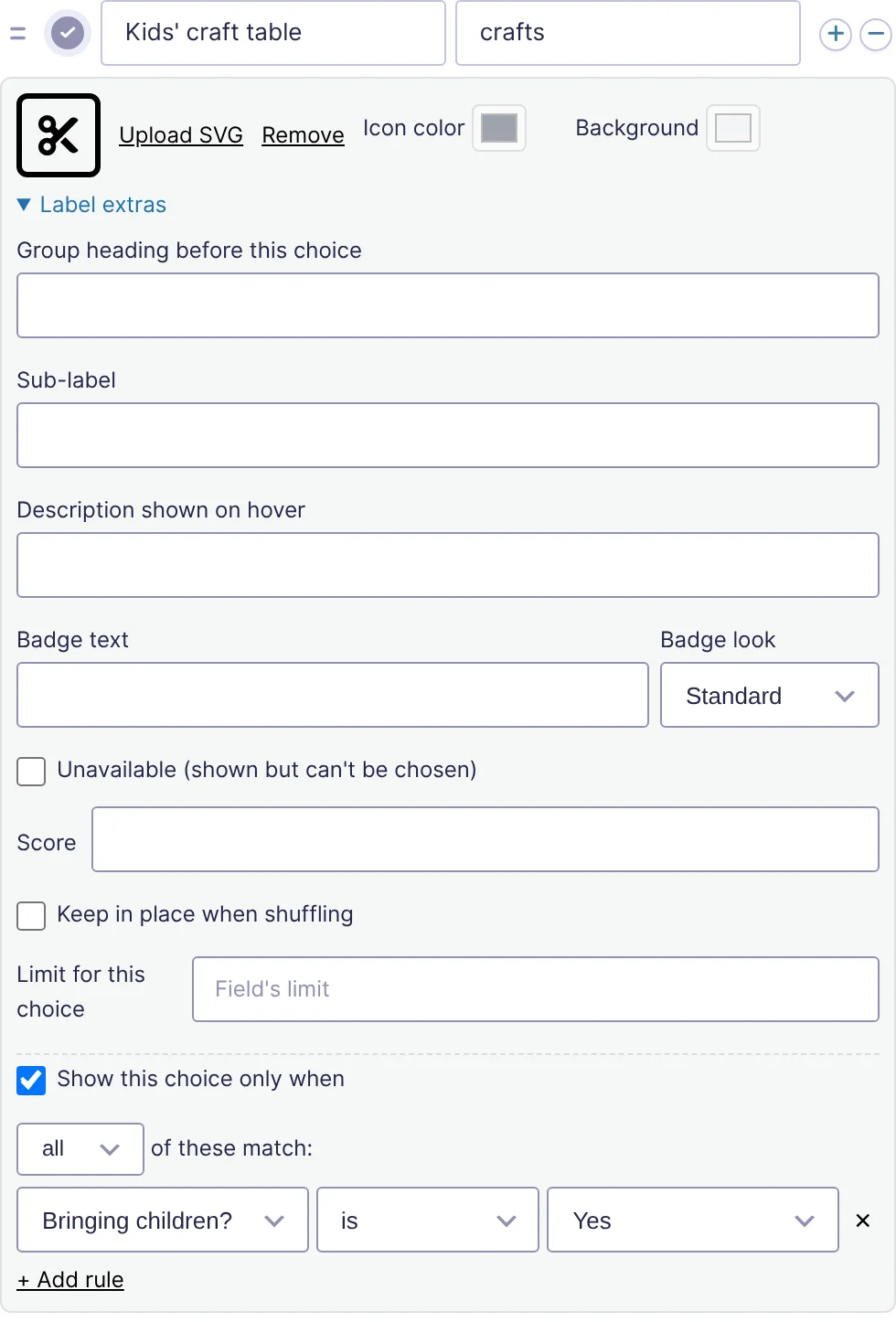
Add a rule
- Under the choice in Edit Choices, open Label extras.
- Tick Show this choice only when.
- Choose all or any, then set the rule: a field, a comparison and a value. For fields with choices, the value is a list of their choices.
- Click + Add rule for more rules, or × to remove one.
- Click Save Form.
Comparisons: is, is not, greater than, less than, contains, starts with and ends with, the same as Gravity Forms’ conditional logic. If the form has no other fields yet, you’ll see Add other fields to the form first.
On the form
- The choice appears and disappears as the visitor answers, including answers on earlier pages.
- If a chosen choice becomes hidden, it’s unchosen.
- When the form is sent, the rule is checked again: a hidden choice can’t be sent (“Kids’ craft table” isn’t available with your other answers. Please choose another option.).
Rules work on cards and on visual dropdowns.
If every choice in a field could be hidden at once, hide the whole field with Gravity Forms’ own conditional logic too, so visitors never see an empty question.
Was this page helpful?
Thanks for letting us know.