
Gravity Forms Image Choice fields
Updated November 10, 2026
Gravity Forms has its own Image Choice field. KodaChoices takes it over automatically: every Image Choice field on the site shows as KodaChoices cards, using the pictures already uploaded to its choices. You don’t need to change anything.
What you get
- Your styles, columns, field colors, hover pictures, badges, sub-labels and every rule, on fields you’ve already built.
- The pictures stay where Gravity Forms keeps them, so switching KodaChoices off later shows the field exactly as before.
What’s different on an Image Choice field
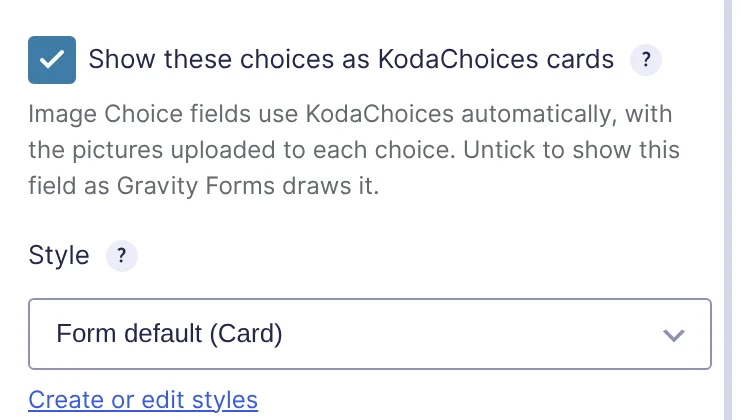
- Show these choices as KodaChoices cards starts ticked, with a note saying the field uses KodaChoices automatically.
- There’s no Mode setting: Image Choice fields are always Image mode.
- Each choice’s picture is set with Gravity Forms’ own image button, as usual. KodaChoices adds Hover picture and Label extras under each choice.
- Add pictures to many choices isn’t shown.
Everything else in Field settings and Settings for each choice works the same.
Switch it off for one field
Click the field, open its KodaChoices section and untick Show these choices as KodaChoices cards. The field goes back to Gravity Forms’ own look. Your KodaChoices settings for it are kept if you tick it again later.
Switch it off for the whole site
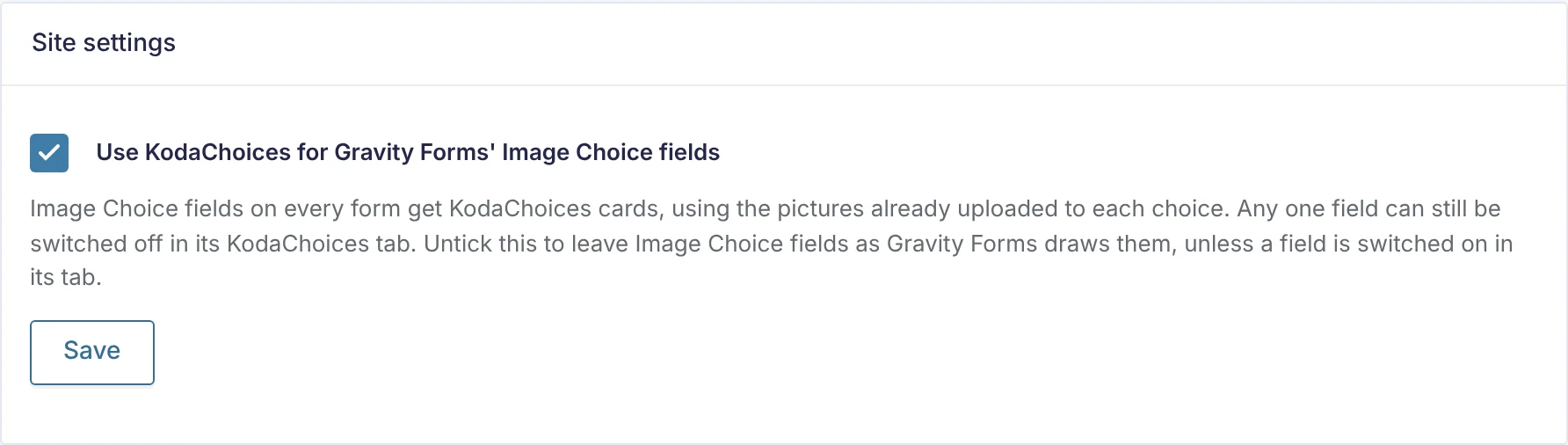
- Open any form’s Settings → KodaChoices.
- Under Site settings, untick Use KodaChoices for Gravity Forms’ Image Choice fields and click Save.
Image Choice fields then look as Gravity Forms draws them, unless you tick Show these choices as KodaChoices cards on a particular field. A field’s own setting always wins over the site setting, either way.
Thanks for letting us know.