
Swatches (Swatch mode)
Updated November 10, 2026
Swatch mode shows a color on each card: one color, two colors, or a pattern drawn in two colors. Use it for product colors, fabrics, paint and themes.
Try it
This form is live on this page. (The form can’t be sent.)
Colors for each choice
Under each choice in Edit Choices:
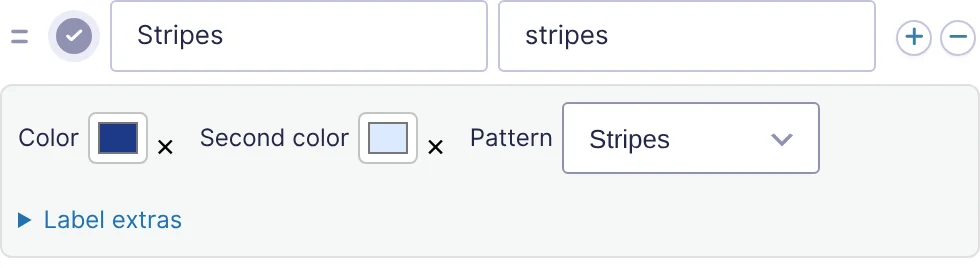
| Control | What it does |
|---|---|
| Color | The swatch’s color. |
| Second color | Optional. Without a pattern, the swatch is split corner to corner into the two colors. With a pattern, this is the background the pattern is drawn on. |
| Pattern | Field’s pattern (the default) uses the pattern set on the field, if any. No pattern gives this choice plain colors even when the field has a pattern. Or pick one of the ten patterns for this choice only. |
Click a color box to open the color picker, or type a hex code such as #1e3a8a. The × next to it clears the color. A choice with no color shows its card without a swatch.
Patterns
There are ten built-in patterns: Stripes, Pinstripe, Dots, Gingham, Plaid, Herringbone, Diamond, Chevron, Wood grain and Carbon fiber. Each is drawn in the choice’s colors:
- The first Color draws the pattern (the stripes, dots or lines).
- The Second color is the background. Without one, the background is white.
Patterns are drawn in code, so there’s nothing to upload and they stay sharp at any size.
One pattern for the whole field
For one fabric in many colors, set the pattern once on the field instead of on every choice. In the field’s KodaChoices section (Swatch mode only):
| Setting | What it does |
|---|---|
| Pattern for every choice | None (plain colors), or a pattern every choice uses unless it picks its own. |
| Pattern size | The size of one repeat of the pattern, from 4 to 120 px. Leave empty (Auto) to use the pattern’s own size. Larger numbers make bigger checks and wider stripes. |
Each choice then only needs its two colors.
Swatch size and shape
The swatch’s size, its corners, a ring around it and whether the selected outline goes around the swatch or the whole card are set by the style. The Swatch dot preset makes small round swatches with a ring when chosen. See Style settings.
In notifications and Gravity PDF, a patterned swatch shows as a plain dot in its first color, because many email programs don’t show patterns. The entry screen in WordPress shows the real pattern.
Thanks for letting us know.