
The Style Builder
Updated November 10, 2026
The Style Builder is where you make and change styles. Open it from Form Settings → KodaChoices: click Edit on a style, or a preset under New style.
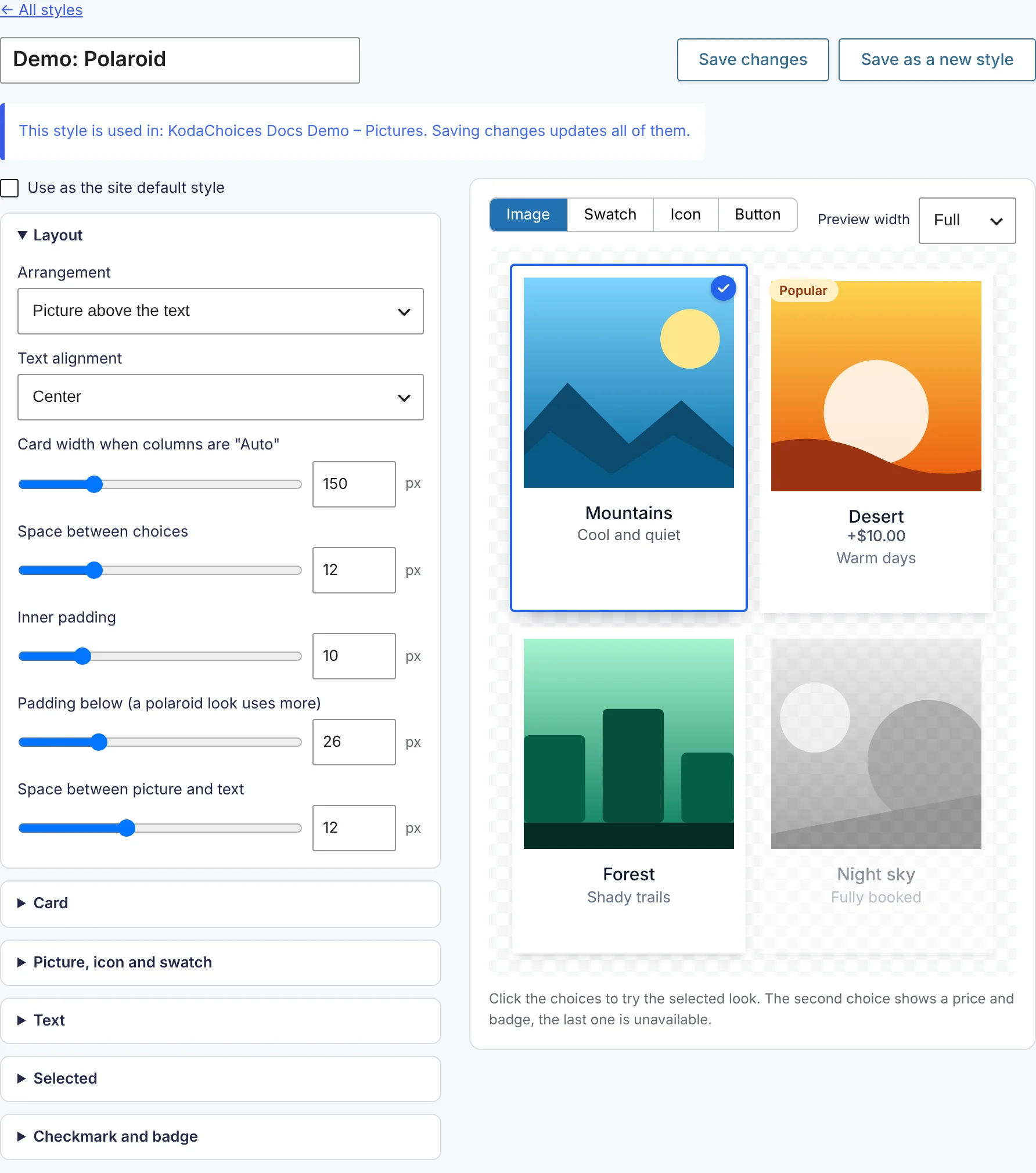
Using it
- Type the style’s name at the top.
- Change settings on the left. They’re grouped into Layout, Card, Picture icon and swatch, Text, Selected, and Checkmark and badge; click a group to open it. Number settings have a slider and a box for exact values.
- Watch the preview on the right. Click its Image, Swatch, Icon and Button tabs to see the style in each mode, and use Preview width (Full, Narrow, Phone) to see it in smaller spaces. Click the sample choices to try the selected look; the second shows a price and badge and the last is unavailable.
- Click Save style (new) or Save changes (existing).
Other options:
- Save as a new style saves your changes as a separate style and leaves the original as it was.
- Use as the site default style makes this style the site default when you save.
- ← All styles goes back without saving.
When the style is already in use, a note lists the forms that use it. Saving changes updates all of them straight away.
Colors with Clear for none next to them can be left empty: an empty background or outline is see-through, and an empty label color follows your theme’s text color.
For every setting, see Style settings.
Was this page helpful?
Thanks for letting us know.