
How to Let Users Edit Gravity Forms Entries After Submission
Updated November 10, 2026 · 3 min read
Someone spots a typo in their application. A booking moves to a different date. A volunteer coordinator needs to mark a shift as covered. All of these mean changing an entry that’s already been submitted.
Gravity Forms makes that easy for administrators and hard for everyone else. This guide covers the built-in options, the common workarounds, and how to let the right people edit entries from the front end.
What Gravity Forms can do on its own
- Editing in wp-admin. Anyone with the right capabilities can open Forms → Entries, open an entry and click Edit. That works for your team, as long as they’re comfortable in the dashboard and you’re happy giving them access to it.
- Save and Continue. Lets visitors save a form part-way and come back to it with a link. It’s for finishing a form, not changing it once it’s submitted.
There’s no built-in way for the person who submitted an entry, or a manager without wp-admin access, to change it from your site.
The usual workarounds
- “Email us and we’ll change it.” Fine at ten entries a month, painful at a hundred, and every change goes through you.
- Submit the form again. Now you have two entries, and someone has to work out which one is right.
- Give people wp-admin access. Even with a custom role, they see far more than they should, and the Entries screen isn’t built for them.
Edit links on a KodaDash board
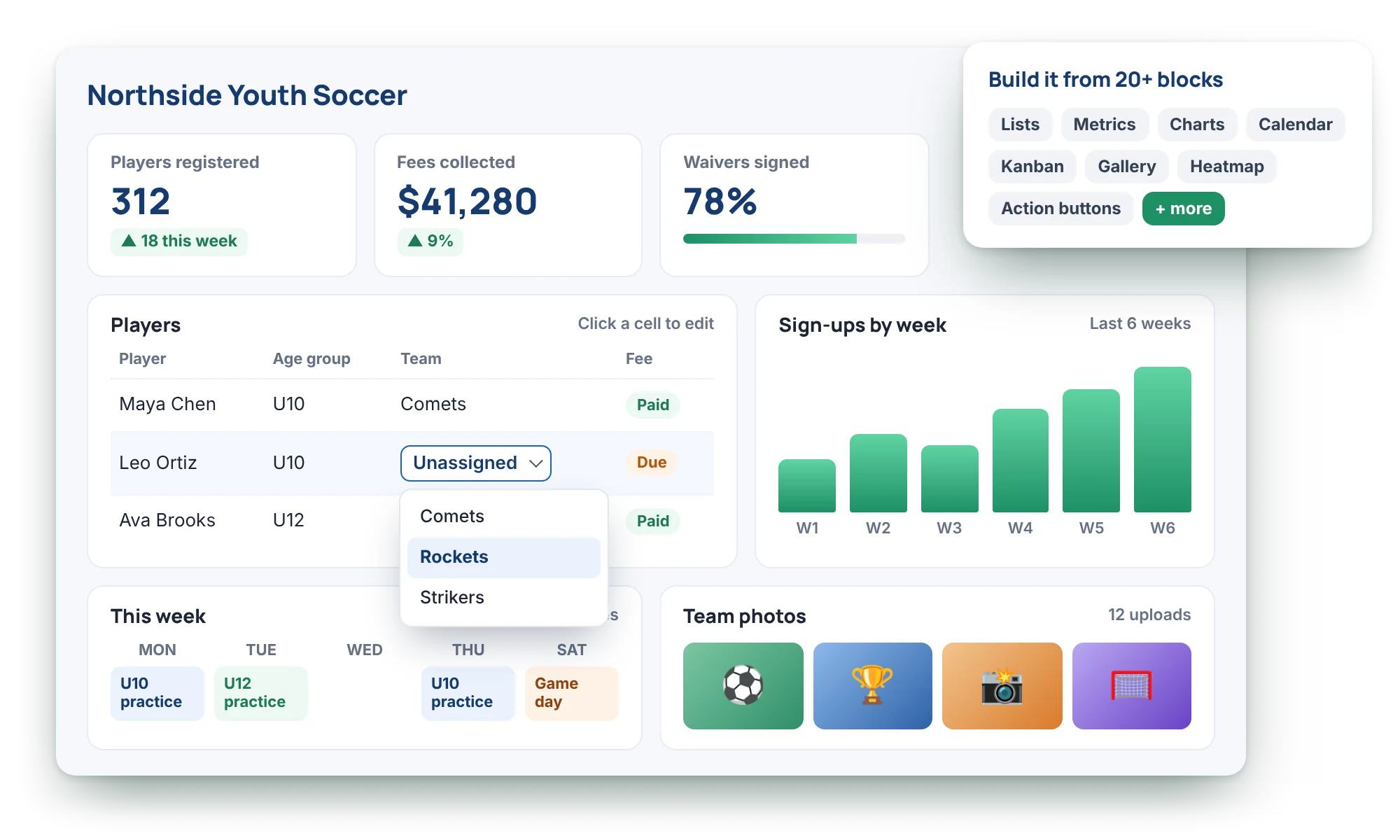
KodaDash shows entries on the front end as boards, and every board can include edit links. Clicking one opens the entry’s own Gravity Forms form, filled in with its current values. Saving updates the same entry instead of creating a new one.
You can add an edit link in several places:
- A List or Multi-Form List: an Edit Link column, or turn any column’s value into an edit link.
- An Entry Summary: an Edit Link row.
- A Calendar: set events to open the edit form when they’re clicked.
Control which fields can change
Each block’s Edit tab lets you choose, per form, which fields are hidden on the edit form and which are read only. A customer can update their phone number without touching the price; an applicant can fix their address but not the date they applied. Multi-page forms keep their pages.
Quick changes with inline editing
For small changes, tick Allow inline editing on a list column. People click the value, change it and press Enter, without opening the whole form. Inline editing works with text, number, email, phone, website, date, drop down, radio button, checkbox, multi select, name and address fields, and values are checked before they’re saved.
Who’s allowed to edit
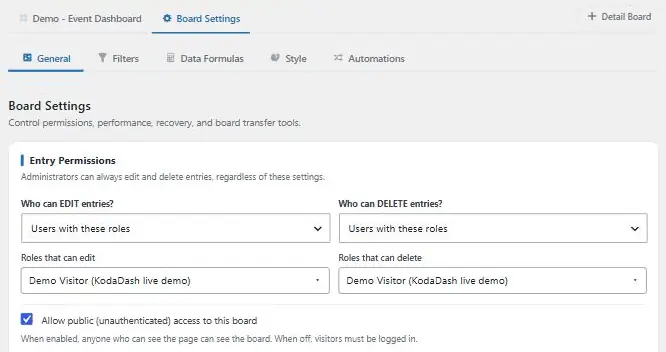
This is the part a hand-built solution usually gets wrong. In Board Settings → General → Entry Permissions, you set who can edit and who can delete separately:
- Entry creator only (the default): the logged-in person who submitted it.
- Any logged-in user, or users with these roles.
- Custom rules based on the entry’s own fields, for example “Assigned to is the current user”.
Edit links only appear for people allowed to use them. If someone loses access, or tampers with a link, the edit is refused instead of being saved.
What happens after a save
- Confirmation: go straight back to the board (the default), show a message, open a page or redirect. You set this per form under Settings → KodaDash → Edit Confirmation.
- Notifications: edits don’t resend the form’s “Form is submitted” emails. To email someone when an entry changes, add a notification with the event KodaDash: Entry Updated. Routing and conditional logic work as usual.
- History: turn on Keep an edit history to record every change with who made it, when and the old and new values, then show it with the Edit History block.
Which route should you take?
- Only your admins ever change entries: Gravity Forms’ own Entries screen is enough.
- Submitters, clients or staff need to update entries without wp-admin: put the entries on a front-end board with edit links and permissions.
See edit links and inline editing on a live board on the KodaDash page, or read Editing an entry in the docs.