
How to Auto-Populate a Gravity Forms Field Based on Another Field
Updated November 10, 2026 · 4 min read
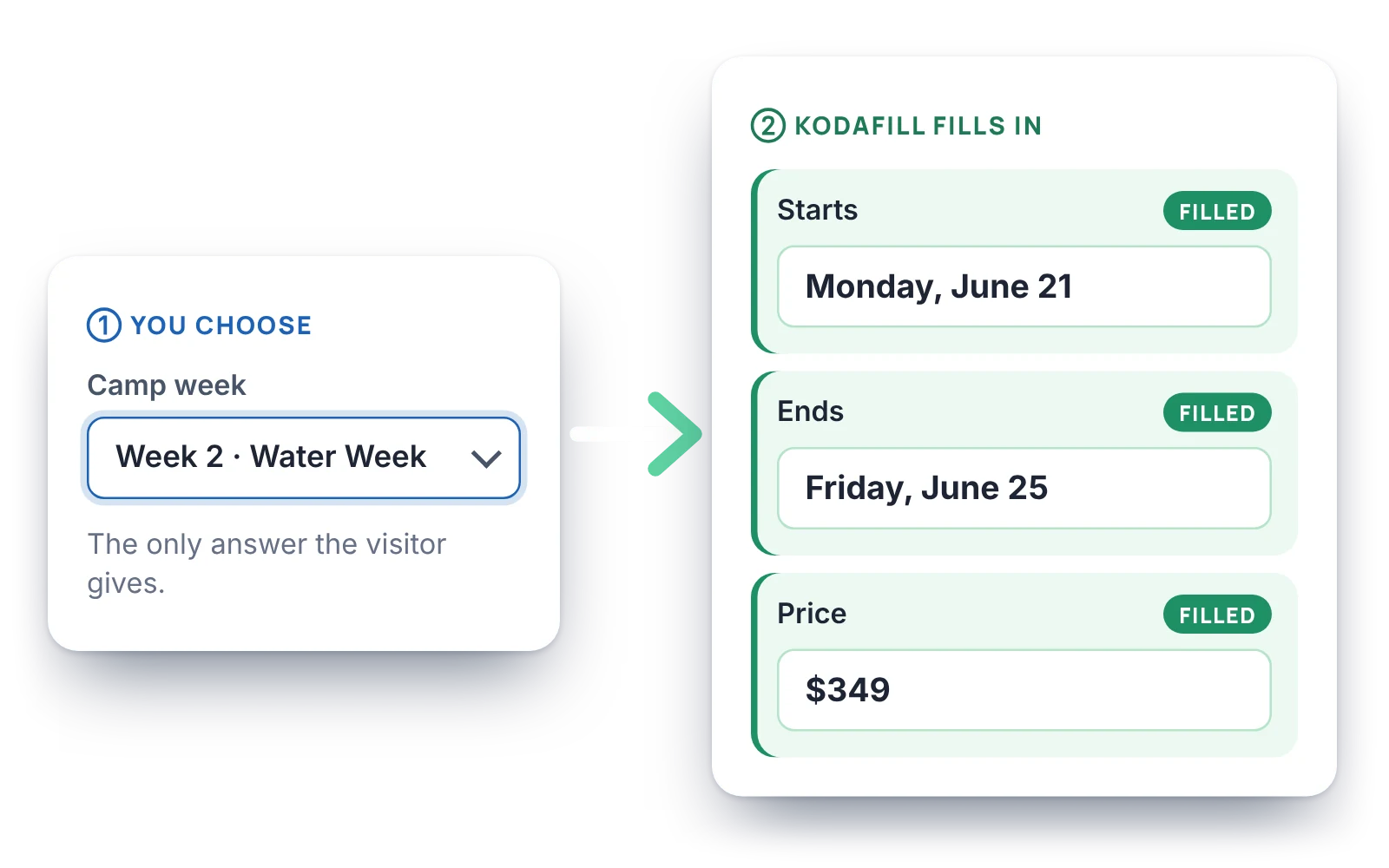
Someone picks “Week 3” of summer camp, and the start date should fill itself in. Someone chooses the Pro plan, and the price should be set. Someone types their name, and a greeting further down should use it.
That’s one of the most searched Gravity Forms questions: how to fill a field based on what was chosen in another field. Gravity Forms gets you part of the way. This guide shows where its built-in tools stop and how to set up if/then fill rules without code.
What Gravity Forms can do on its own
Gravity Forms has three features that sound like the answer:
- Dynamic population. Tick Allow field to be populated dynamically, give it a parameter name, and fill it from the page address (
?plan=pro), the form shortcode or block, or a PHP hook. It fills the field when the form loads. It doesn’t react when the visitor changes another answer. - Conditional logic. Shows or hides fields based on other answers. It doesn’t put a value into a field.
- Calculations. A Number field (or a product) can calculate from a formula using other fields. That covers arithmetic, but not text, choices or dates.
The usual workaround is several copies of the same field, each with its own value and conditional logic, and only one shown at a time. It works for two or three cases and becomes hard to manage after that, because every copy is a separate field in your entries and notifications.
The code route
A developer can listen for changes with JavaScript and set the other field’s value, then repeat the same logic in PHP (for example with gform_pre_submission) so the saved entry is right even if JavaScript was skipped or the value was changed in the browser. Dates need extra care, because the field’s display format and the visitor’s time zone both matter.
That’s two copies of the same rules to keep in step, in two languages, for every form that needs them.
The no-code route: KodaFill rules
KodaFill adds a KodaFill tab to fields in the form editor. You write simple if/then rules on the field that should be filled. While the form is being filled in, the field updates as soon as an answer it depends on changes. When the form is submitted, the rules run again on the server, so the saved entry always follows them.
Example: a start date from the chosen week
Say you have a Drop Down called Camp week (Week 1 to Week 4) and a Date field called Start date.
- Click the Start date field and open the KodaFill tab.
- Tick Fill this field in automatically. An empty rule appears.
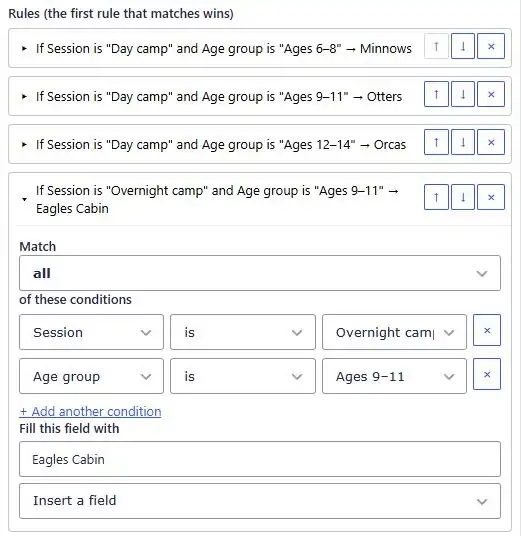
- Under When, choose Camp week, is, Week 1. KodaFill lists the field’s own choices, so you pick instead of typing.
- Under Fill this field with, type the date, for example 6/7/2027. A hint shows how it will appear in the field’s own format.
- Add a rule for each week, or use Quick add to make one rule per choice in one go.
- Save the form.
What a rule can fill
KodaFill works on Single Line Text, Paragraph Text, Number, Hidden, Email, Phone, Website, Drop Down, Radio Buttons, Checkboxes and Date fields.
- Text fields take text and merge tags, so you can copy one field into another or build a sentence from several answers.
- Choice fields are set to one of their own choices, or to exactly the boxes you tick.
- Date fields take a date, a merge tag from another Date field, or a date worked out from today.
Dates from today
“Due date 14 days from today” and “renewal one year from today” are common needs. KodaFill reads values like {today}, {today+14}, {today+2 weeks}, {today+1 month} and {today-1 year}, and writes the result in the Date field’s own format.
While the form is open, “today” is the date on the visitor’s device. On submit, it’s worked out again from your site’s time zone, and that’s the value that’s saved.
Let visitors change it, or not
Each field chooses who has the last word:
- Always fill it: the rules decide every time. Use it for prices, dates and codes. Tick Visitors can’t change this field to show the value greyed out so nobody types over it.
- Fill it only if it’s empty: the rules suggest a value, and once the visitor types their own, KodaFill leaves it alone.
When someone edits a saved entry, fields that depend on a changed answer are worked out again.
Which route should you take?
- Pre-fill a field from a link or the page it’s on: Gravity Forms’ dynamic population is perfect.
- A number worked out from other numbers: use a calculation.
- Text, choices or dates that should change as other answers change, and be right in the saved entry: use KodaFill rules.
Try it on the live camp registration form on the KodaFill page, or see more examples in the KodaFill docs.