
How to Build a Job Application Form and Track Applicants with Gravity Forms
Updated November 10, 2026 · 3 min read
Hiring through your own website keeps applications in one place and avoids job-board fees. Gravity Forms is a solid base for it, but a good application form is long, and once applications arrive, someone has to keep track of who’s at which stage.
This guide builds both halves: the application form, and an applicant tracker for the hiring team.
Part 1: the application form
The fields
A typical application has four groups:
- About you: name, email, phone.
- Experience: current job title, years of experience, a CV upload (File Upload field, restricted to PDF and Word files), a cover letter.
- Availability: earliest start date, full or part time, salary expectation.
- Consent: agreement to your privacy policy.
Let people finish later
Applicants often need their CV from another device. Gravity Forms’ built-in Save and Continue (in the form’s settings) gives them a link to come back to their application. Turn it on for any form longer than a few minutes.
Split it into steps
Twelve-plus fields on one page looks daunting. Gravity Forms’ Page field can split it with a progress bar. KodaSteps goes further:
- In order mode: applicants can always go back, but can’t skip ahead before finishing earlier steps.
- Each step is checked when Next is clicked, so a missing CV is caught on the Experience step, not at the very end.
- A Save and Continue link on every step brings people back to the same step.
- A review step lists every answer (including the CV’s file name) with Edit links, and renames the Submit button to Send application.
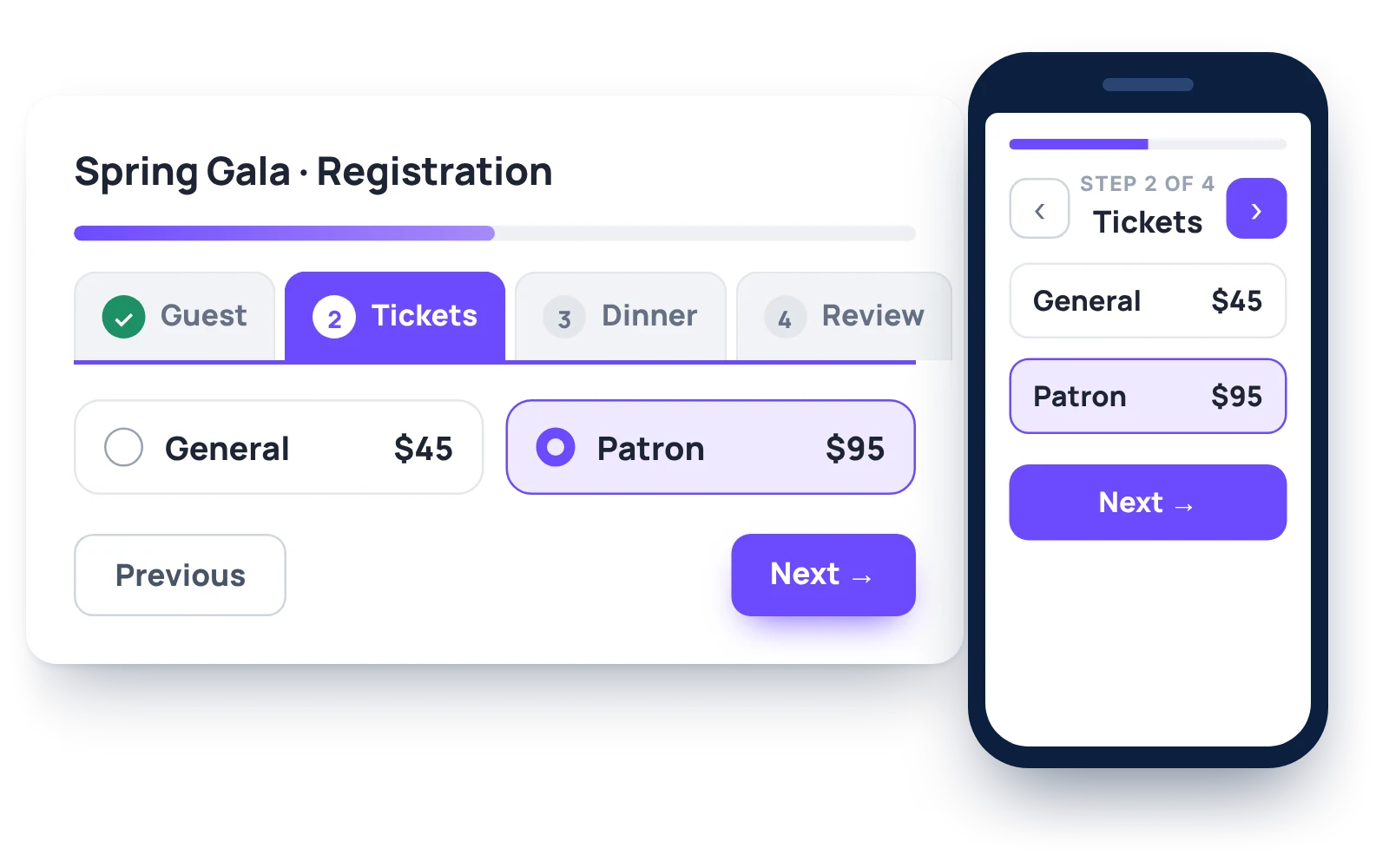
Try the job application demo, where you can switch step styles and layouts, on the KodaSteps page. There’s more on step settings in multi-step Gravity Forms.
Part 2: tracking applicants
The built-in way
Applications land in Forms → Entries. You can star entries, add notes and filter, and many small teams track candidates that way, or by adding an Administrative Stage field they change by hand. It works, but everyone on the hiring team needs wp-admin access, and there’s no overview of who’s where.
A Kanban board for the hiring team
KodaDash can put applications on a front-end Kanban board:
- Add a Drop Down field Stage to the form with New, Screening, Interview, Offer and Closed, with visibility set to Administrative.
- On a board, add a Kanban block with the same five columns.
- In its Cards tab, use Keep in step with form fields to link the columns to Stage, and tick Also put entries on the board when this field names a column so new applications land in New.
- Choose what each card shows: name, role, years of experience.
- Let the hiring team move cards. Moving a card sets the entry’s Stage, and changing Stage elsewhere moves the card.
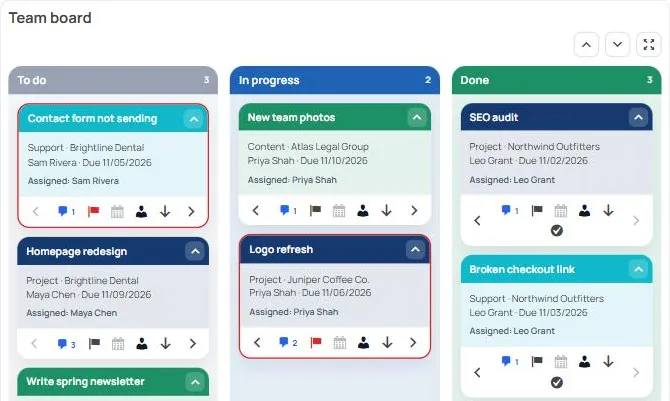
Cards can be assigned to an interviewer, carry notes and @mentions for the team’s comments, and have due dates with reminder emails. Clicking a card can open a Detail Board with everything about the applicant, including a link to their CV.
Emails at each stage
KodaDash adds events to Gravity Forms notifications, such as Kanban Card Moved and Kanban Card Assigned. Use them with conditional logic to email an interviewer when a candidate reaches Interview, or send the candidate a polite note when their application is closed.
Who sees what
Keep the board for logged-in team members only, and use block visibility to show salary expectations only to managers. Entry permissions decide who can move cards and edit applications.
Which parts do you need?
- A handful of applications a year: Gravity Forms, Save and Continue, and the Entries screen.
- Long applications that people abandon: add steps with a review step.
- A team reviewing many candidates: add a Kanban applicant tracker on the front end.
More about putting entries on the front end in displaying Gravity Forms entries.