
How to Add Attachments to Gravity Forms Notification Emails
Updated November 10, 2026 · 3 min read
A registration should arrive with the welcome packet. A quote request should get the price list for the plan that was picked. Under-18s need a waiver, and a paid order needs its receipt or ticket.
Gravity Forms sends notifications well, but attaching your own files to them is a different matter. This guide covers what Gravity Forms attaches on its own, the code route, and how to attach the right file to each email without code.
What Gravity Forms attaches on its own
Every notification has an Attachments setting, below the message. Tick it, and the email carries the files the visitor uploaded through the form’s File Upload fields.
That’s all it attaches. There’s no box to pick a file from your Media Library, so a brochure, a price list or a set of terms you want to send with every registration needs another way in. You can also only attach all uploads or none, not uploads from one field.
The usual workaround is a link in the email instead of an attachment. It works, but people forget to download it, links get filtered, and you can’t send a different file to different people without one notification per case.
The code route
The gform_notification filter lets a developer add files to $notification['attachments'] before the email is sent. Two things trip people up:
- Attachments must be file paths on the server, not web addresses. A URL like
https://example.com/brochure.pdfwon’t be attached. - Every choice of file (“Spanish brochure if the language is Spanish”) becomes another
ifin PHP, tied to form, field and notification IDs, which is easy to break when the form changes.
The no-code route: KodaClip
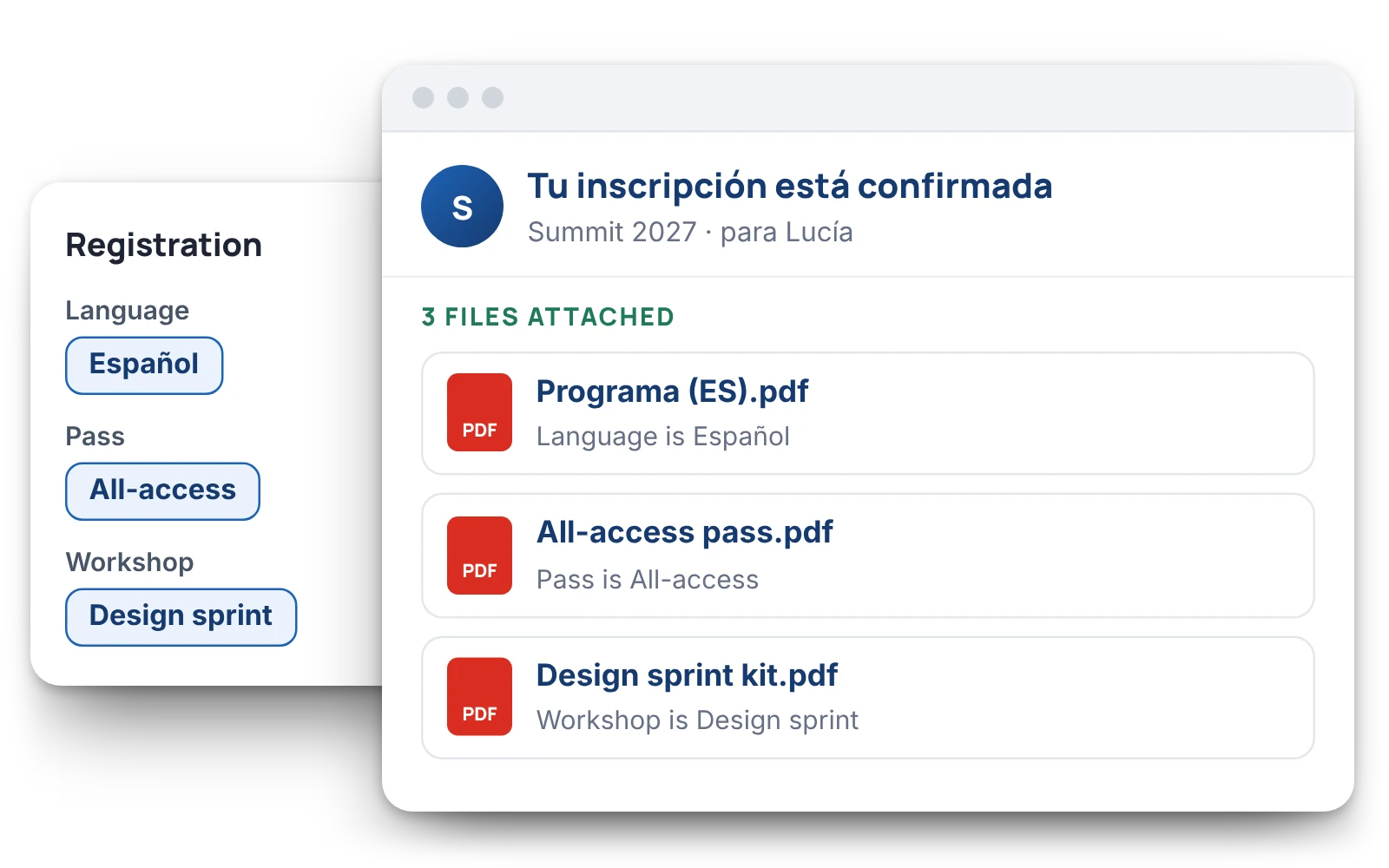
KodaClip adds an Attachments (KodaClip) section to the bottom of every notification. You pick files from the Media Library, and each file can have its own conditions. It works alongside Gravity Forms’ own Attachments setting, so one email can carry the visitor’s uploads and your files.
1. Attach a file to every email
- Go to Forms, hover over your form and click Settings → Notifications.
- Edit the notification (for example your confirmation email) and scroll to Attachments (KodaClip).
- Click Add files, choose one or more files in the Media Library, and click Attach selected files.
- Click Update Notification.
Every email this notification sends now carries the file.
2. Attach a file only to some entries
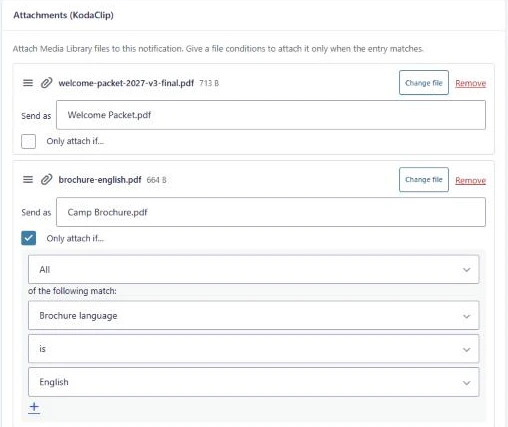
In the file’s row, tick Only attach if…, choose All or Any, and set a rule such as Brochure language is Spanish. Each file has its own conditions, checked on its own, using Gravity Forms’ own conditional logic.
3. One file per choice, in one click
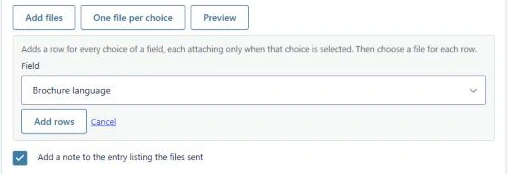
When each choice of a field needs its own file (a brochure per language, a price list per plan), click One file per choice and pick the field. KodaClip adds a row for every choice with its rule already set, and you just choose each file.
Files after a payment
To send a receipt, ticket or members’ guide only once a payment has gone through, set the notification’s Event to Payment Completed and give the file the rule Payment Status is Paid. Most payment add-ons confirm the payment a moment after the form is submitted, so a rule on the “Form is submitted” event would usually still see Processing or Pending.
Check before you go live
- Preview: pick an existing entry and click Check to see exactly which files that entry would get, using the settings on screen.
- Send as: rename what recipients see, so welcome-packet-2027-v3-final.pdf arrives as Welcome Packet.pdf.
- Size warning: many mail servers reject emails over about 10 MB. KodaClip warns you when the files in a notification add up to more than that.
- Entry notes: after sending, KodaClip notes on the entry which files each person received.
KodaClip also attaches files on Resend Notifications, on payment events, and when your media is offloaded to Amazon S3 or a CDN.
Which route should you take?
- Send the visitor’s own uploads to your team: tick Gravity Forms’ Attachments setting.
- One fixed file on one form, and you write PHP: a short
gform_notificationfilter will do. - Your own files, chosen by the visitor’s answers or payment, that anyone on your team can change: use KodaClip.
Try the festival registration demo, which shows which files each answer would attach, on the KodaClip page. Every setting is in the KodaClip docs.