
How to Make a Gravity Forms Field Read Only
Updated November 10, 2026 · 3 min read
A price, a reference number, a date worked out for the visitor, a name passed in from a link: some values belong on the form so people can see them, but shouldn’t be typed over.
Gravity Forms doesn’t have a “read only” checkbox, which is why “Gravity Forms read only field” is such a common search. This guide covers the usual workarounds and their catches, and a simpler way.
What Gravity Forms can do on its own
- Hidden fields. A Hidden field holds a value without showing it. Perfect when visitors don’t need to see the value at all.
- Administrative visibility. Setting a field’s Visibility to Administrative hides it from visitors and shows it only in wp-admin.
- HTML fields with merge tags. You can show some values back to people in an HTML field, though it isn’t part of the saved entry.
None of these shows a normal-looking field that people can read but not edit.
The CSS and JavaScript workaround
The usual trick is giving the field a custom CSS class and adding a snippet that sets the input’s readonly attribute, or styling it with pointer-events: none. It works on the page, with two catches:
- It only affects the browser. Anyone can remove the attribute with their browser’s developer tools and submit a different value. If the field is a price or a code your systems rely on, a read-only look isn’t the same as a protected value.
- Drop downs, radio buttons and dates each need different handling, and date pickers can still pop up unless you deal with them too.
A read-only option built into KodaFill
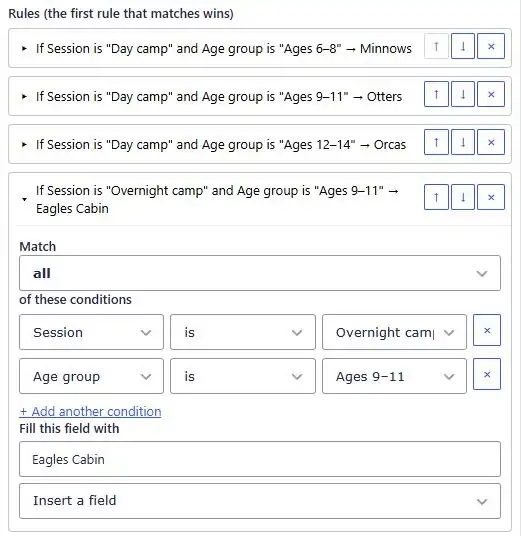
KodaFill fills fields with if/then rules: a price from a plan, a date from a chosen week, a code from a department. Any field it fills with Always fill it can also be locked:
- Click the field and open its KodaFill tab.
- Tick Fill this field in automatically and leave How it fills on Always fill it.
- Tick Visitors can’t change this field.
- Add your rules, or just set If no rule matches to the value the field should always have.
Visitors see the field greyed out. They can’t type in it, click it or tab to it, and it works the same way on text, number, drop down, radio button, checkbox and date fields.
Why this one can be trusted
When the form is submitted, KodaFill runs its rules again on the server and saves that value, replacing anything that came from the browser. So even if someone unlocks the field in their developer tools and changes it, the entry, the notification and any payment get the value your rules say.
That’s the real difference from a CSS-only read-only field: the lock isn’t just visual.
Read-only fields when editing entries
A related need is letting people edit an entry later while keeping some fields fixed, such as the date they applied or the price they paid. If you edit entries on the front end with KodaDash, each block’s Edit tab has a Read Only Fields on Edit setting for exactly that. See editing entries after submission.
Which route should you take?
- Visitors don’t need to see the value: use a Hidden field.
- Only your team needs it: set the field’s visibility to Administrative.
- A visible value that must not change, and must be right in the entry: use KodaFill’s Visitors can’t change this field.
You can see locked fields (start date, end date and price) on the live camp form on the KodaFill page, or read Always fill, or only if empty in the docs.