
How to Set Up Conditional Pricing in Gravity Forms
Updated November 10, 2026 · 3 min read
Members pay less than non-members. Children’s tickets cost less than adults’. The Full camp costs more than the Day camp. Nearly every order or registration form ends up needing a price that depends on another answer.
Gravity Forms can do conditional pricing, but the built-in ways get messy as soon as there are more than a couple of prices. This guide walks through them and shows a tidier approach.
What Gravity Forms can do on its own
Gravity Forms has three tools for prices that depend on other answers:
- Several Product fields with conditional logic. Make one Product field per price (“Member ticket”, “Non-member ticket”) and show only the one that applies. Hidden products aren’t added to the total.
- Option fields. Add a price to each choice of an Option field (+$20 for a T-shirt). Good when the visitor is choosing the extra themselves.
- Calculation products. Set a Product field’s type to Calculation and give it a formula using Number fields, such as quantity × price.
Where it gets messy
The “one product per price” method is the one most people end up with, and it grows fast. Three plans and two membership types is six Product fields, each with its own conditional logic. Change a price and you’re hunting through the form for the right field. Your entries, notifications and payment records also show six different product names for what’s really one ticket.
Calculations are cleaner, but a formula can only work with numbers. It can’t look at which plan was chosen or how old someone is.
A cleaner way: one price field, filled by rules
KodaFill lets you keep one product, and fill its price with if/then rules:
- Add a Number field called Price.
- Add one Product field with the price type Calculation, and set its formula to just the Price field.
- On the Price field’s KodaFill tab, tick Fill this field in automatically and add a rule for each case.
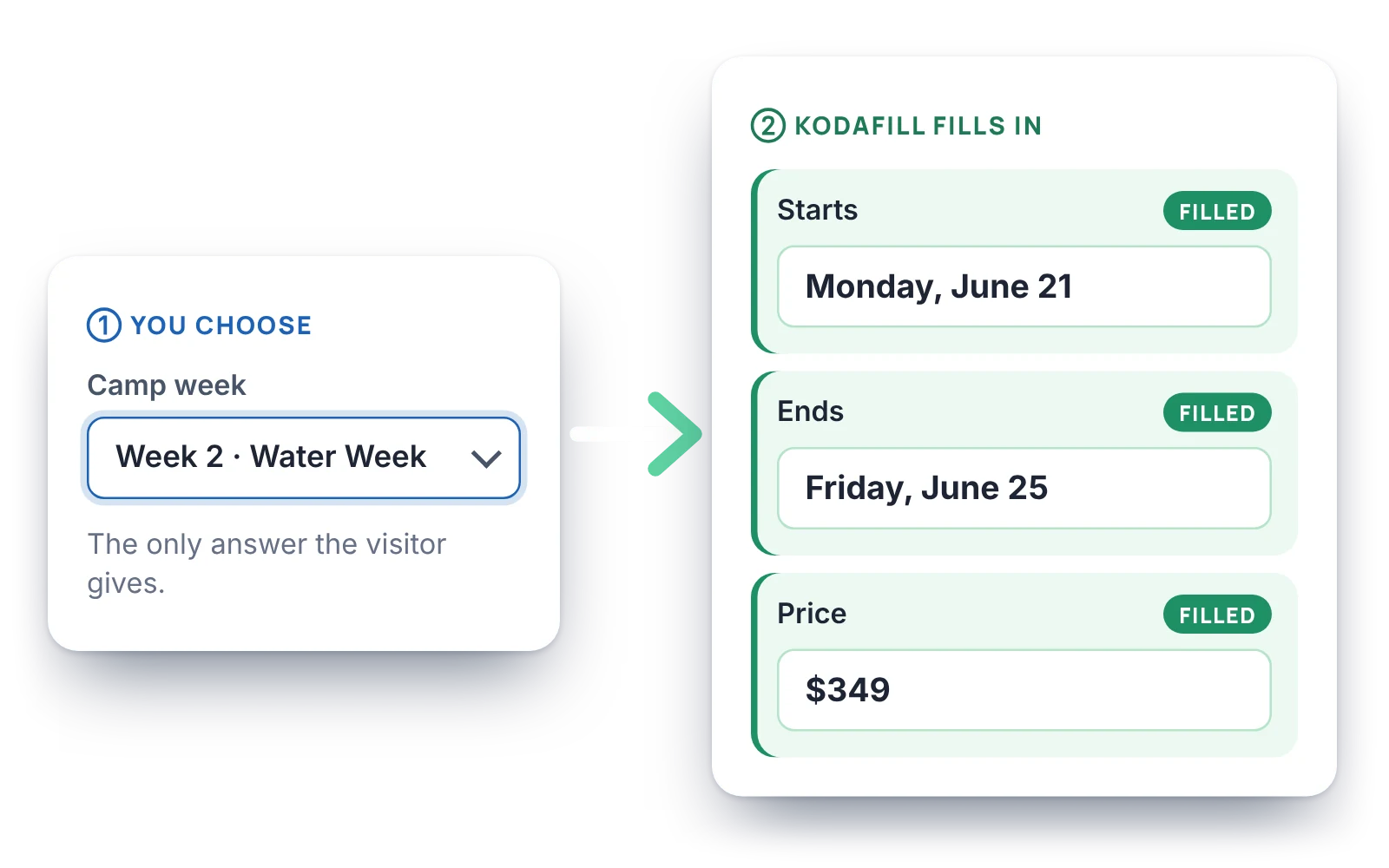
Example: a price per plan
On Price, with Always fill it:
- Plan is Day camp →
149 - Plan is Full camp →
289
Tick Visitors can’t change this field so the price shows greyed out. If you’d rather not show it at all, use a Hidden field instead of a Number field.
The same rules can tick what’s included with each plan: a Checkboxes field with Lunch, T-shirt and Overnight stay can be filled so the Full camp ticks all three.
Example: member and non-member prices
Rules run top to bottom and the first match wins, so combinations are just rules in order. Use All conditions on a rule to check two answers at once:
- Plan is Full camp and Member is Yes →
249 - Plan is Full camp →
289 - Plan is Day camp and Member is Yes →
129 - If no rule matches →
149
Example: a child price by date of birth
KodaFill’s conditions understand dates, so Date of birth is after {today-13 years} → 79 gives everyone under 13 the child price. See age checks and dates from today for more on date rules.
Why the saved price can be trusted
The price fills in on the page as soon as the plan changes, so the total updates live. When the form is submitted, KodaFill runs the rules again on the server before the entry is saved, so the price in the entry, the notification and the payment always follows your rules, even if someone tampers with the page.
Don’t turn on KodaFill for a Number field that also has Enable Calculation ticked, because both would try to set the value. Let KodaFill fill the plain Number field, and let the Product field do the calculating.
Which route should you take?
- Two prices, rarely changed: two Product fields with conditional logic are fine.
- Paid extras the visitor picks: use Option fields.
- Prices that depend on several answers, or that you change often: one Product field with its price filled by KodaFill rules.
Try the camp registration, where the plan sets the price, on the KodaFill page, or see the plan and price example in the docs.